Element card
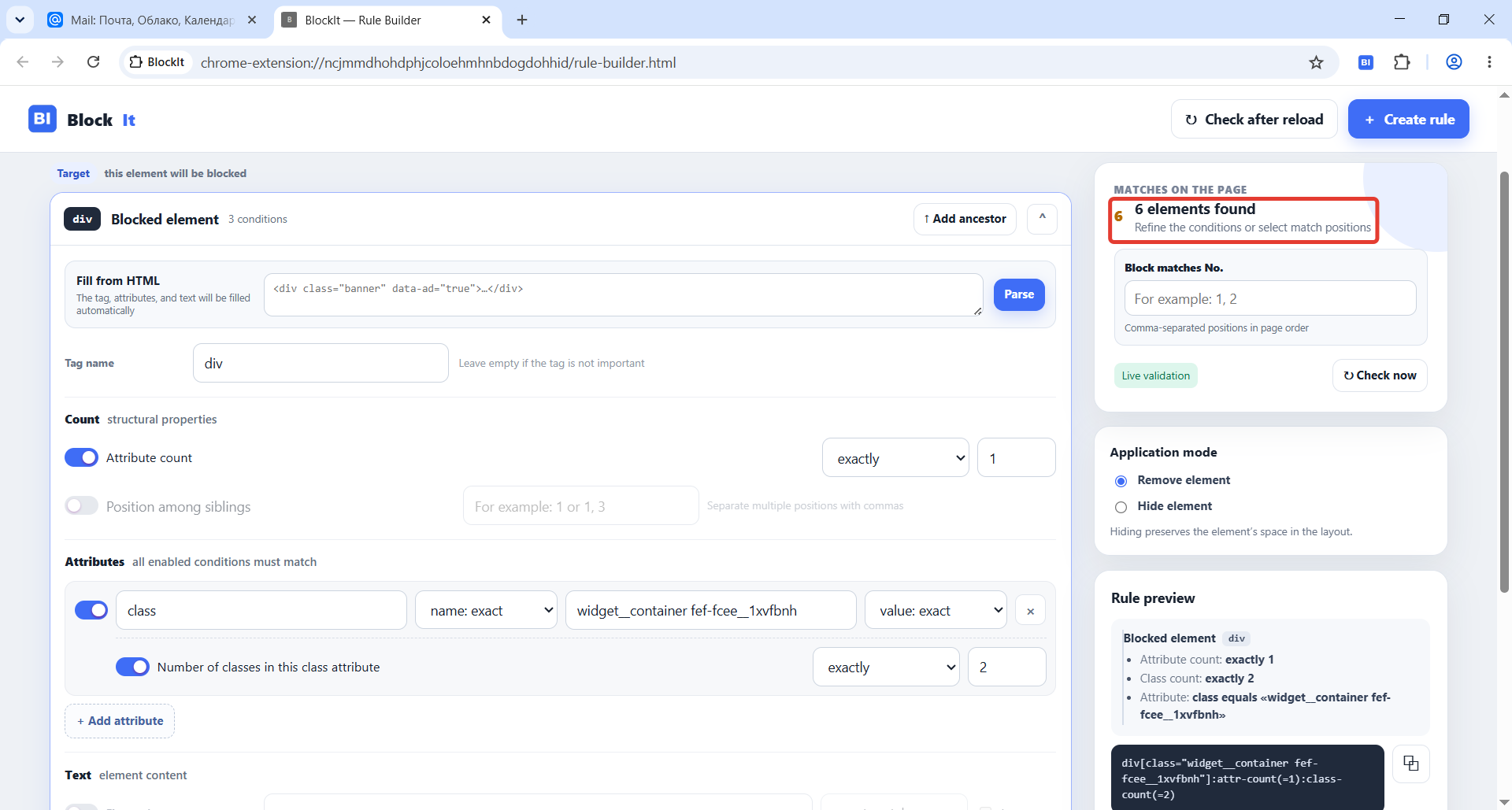
Each card describes one HTML element: its tag, attribute count, and conditions based on attributes, text, and position.
Create rules that block unwanted page elements, from a simple CSS selector to a precise rule based on page structure.
The video shows how to use BlockIt, create rules and check the result.
If the embedded player does not open, watch the video on YouTube.
BlockIt helps you create rules for specific page elements and understand why a rule finds them. The builder shows which traits of the element and its surroundings are used for matching. You can check whether those traits distinguish the target from other elements well enough and choose the ones you consider stable.
Use this route when you want to start with a ready-made CSS selector from DevTools.
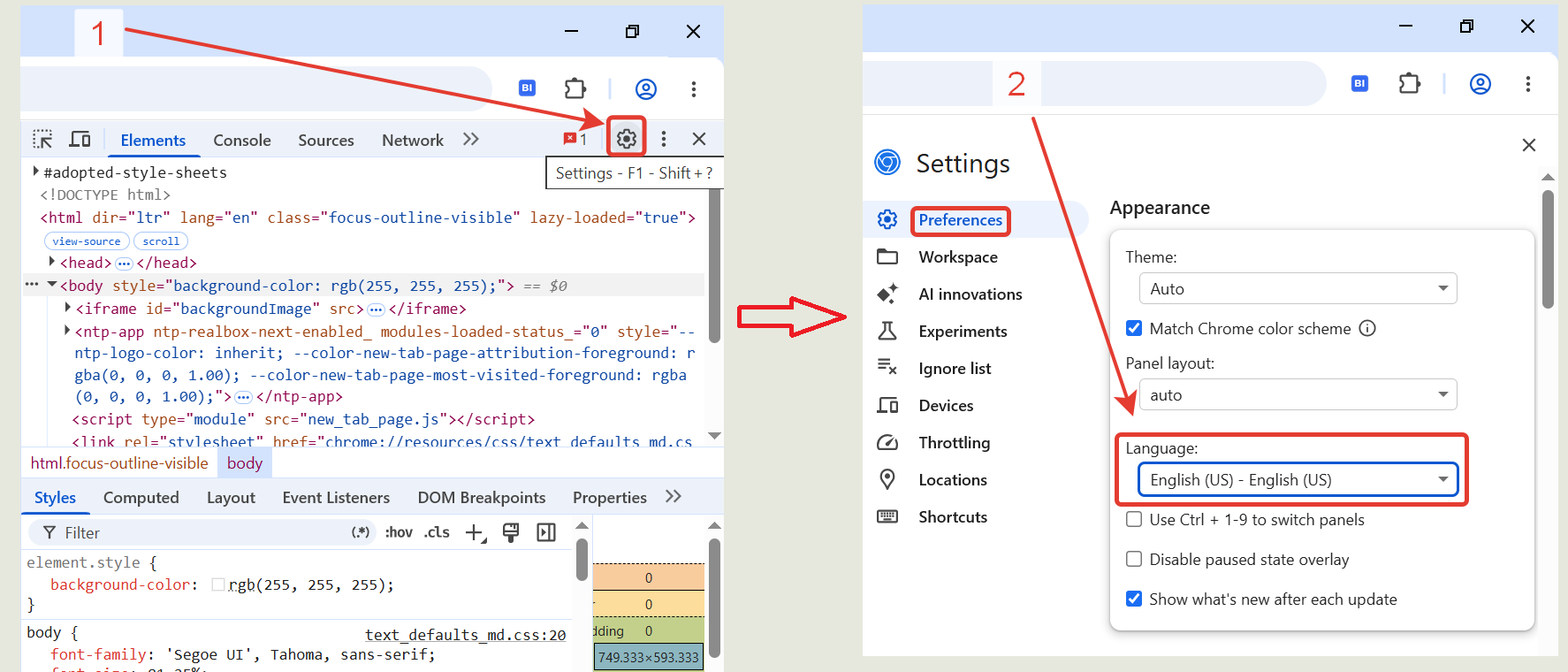
The DevTools interface in the screenshots is in English. You can change the DevTools interface language.
| Action | Result |
|---|---|
| F12 | Opens DevTools. |
| Ctrl + Shift + I | Opens the same panel. |
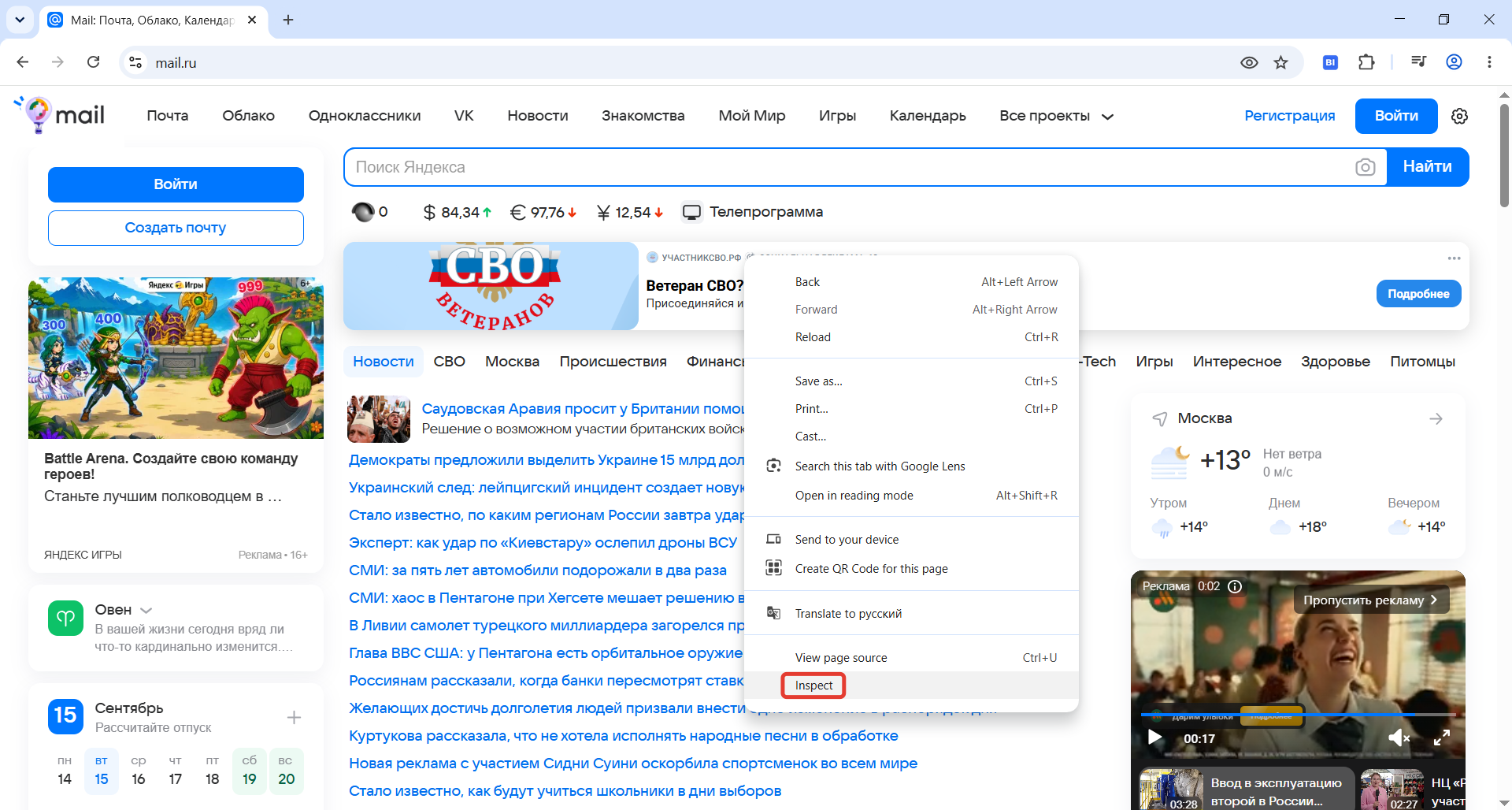
| Right-click an element → “Inspect” | Opens DevTools with that element highlighted. |
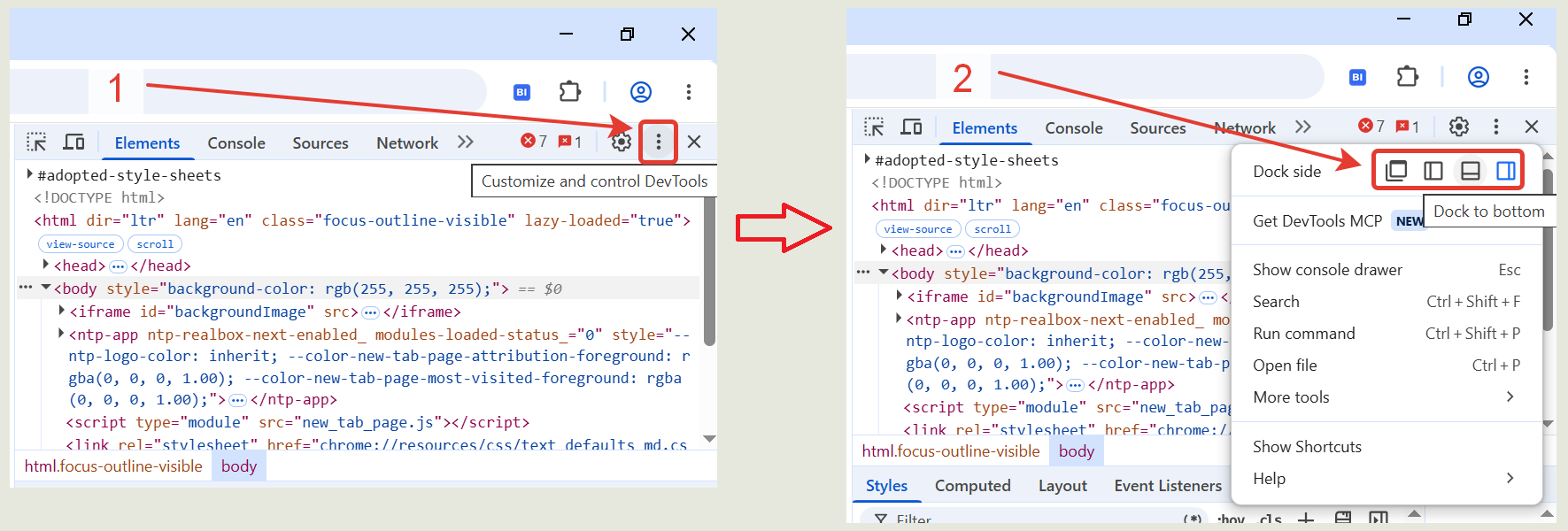
Click ⋮ in the upper-right corner of DevTools and choose a position under Dock side: right, bottom, left, or a separate window. Docking on the right is usually convenient on a wide monitor, docking at the bottom when vertical space is available, and a separate window when using two screens.
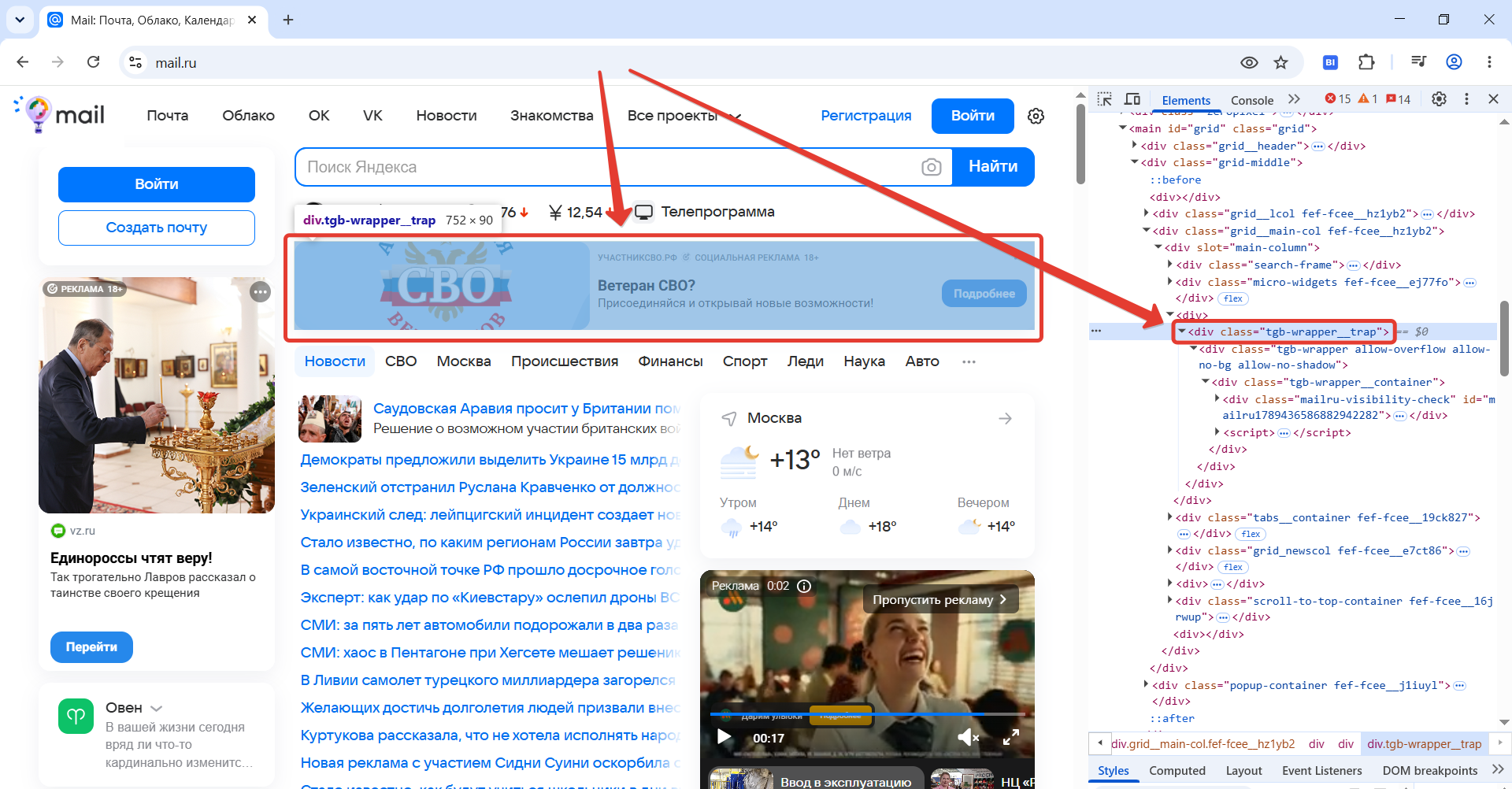
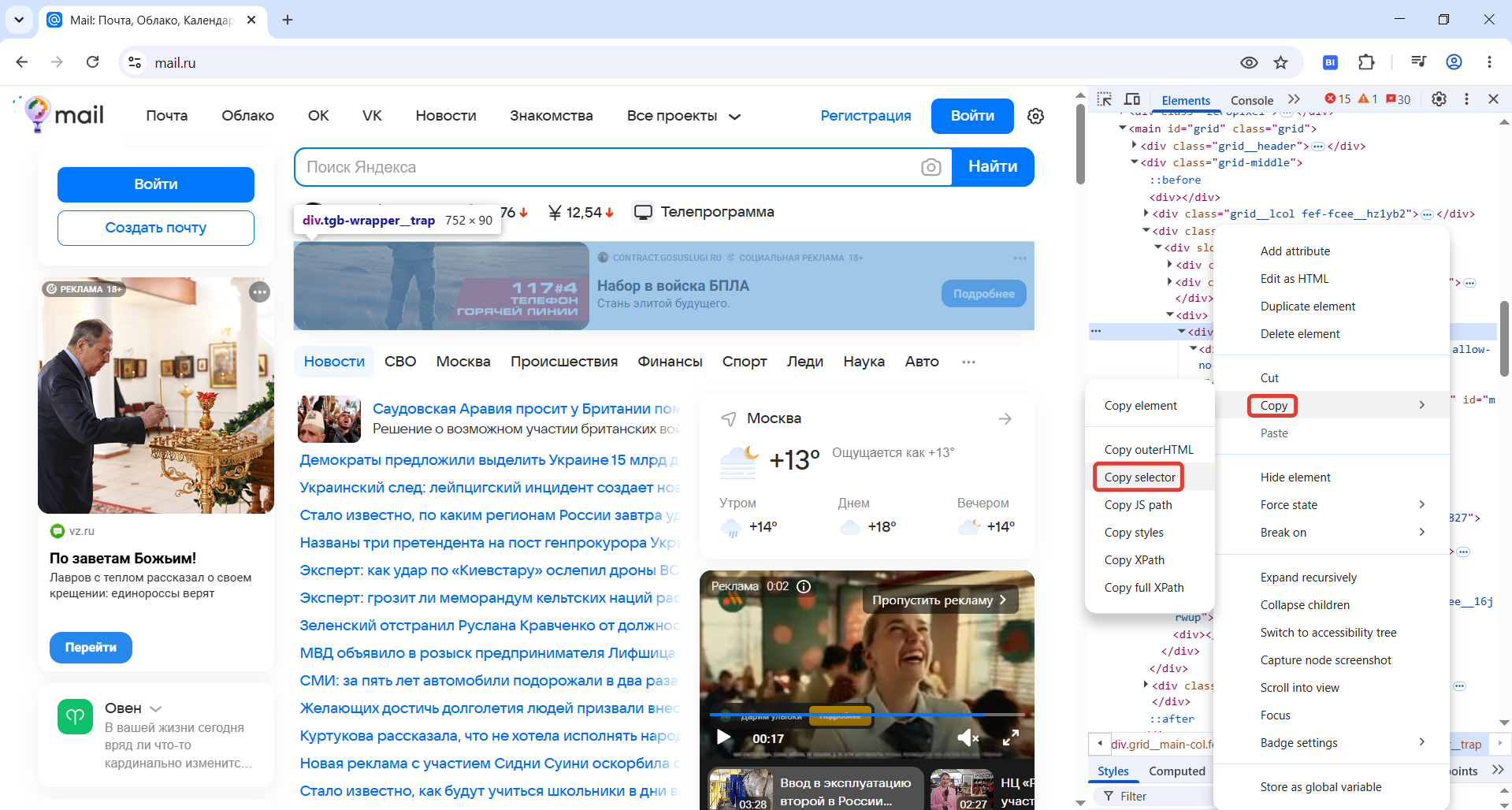
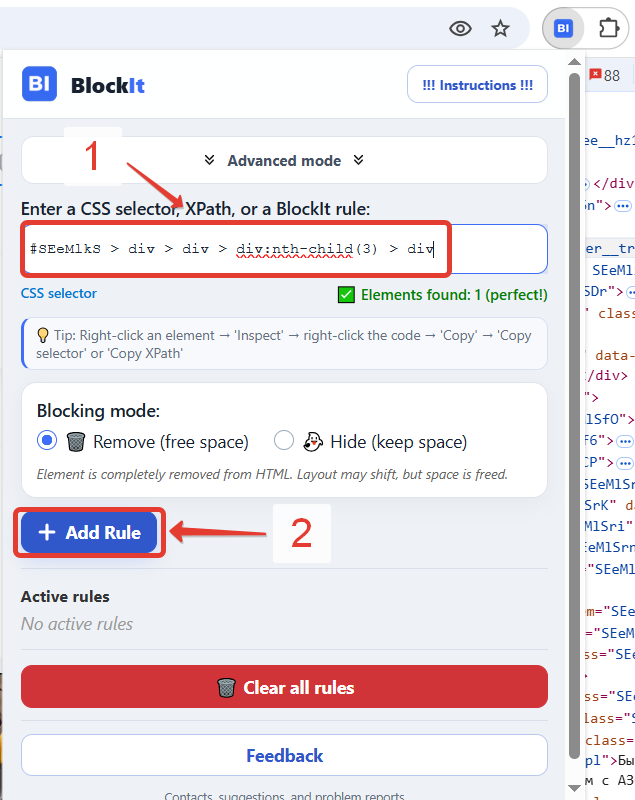
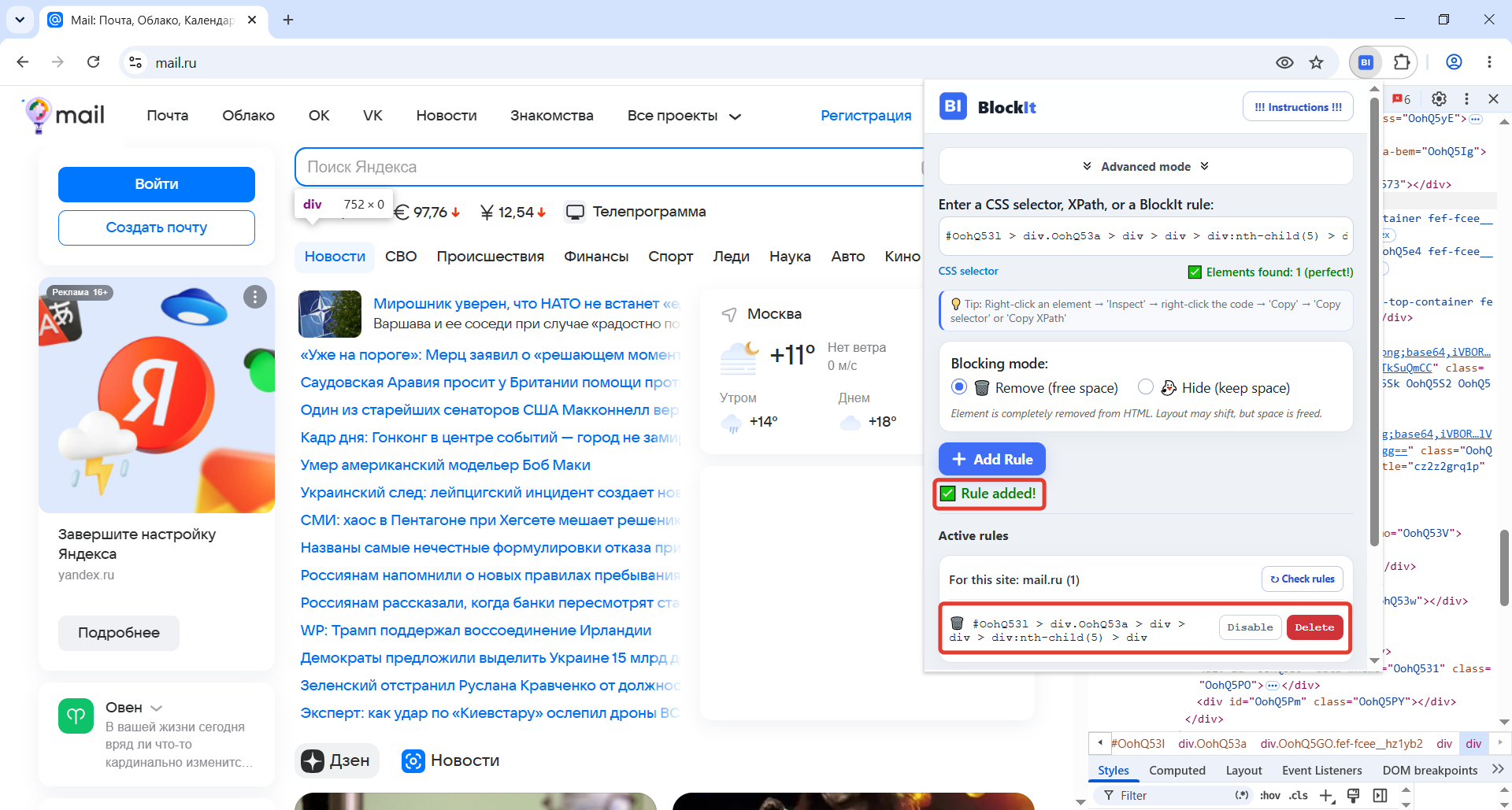
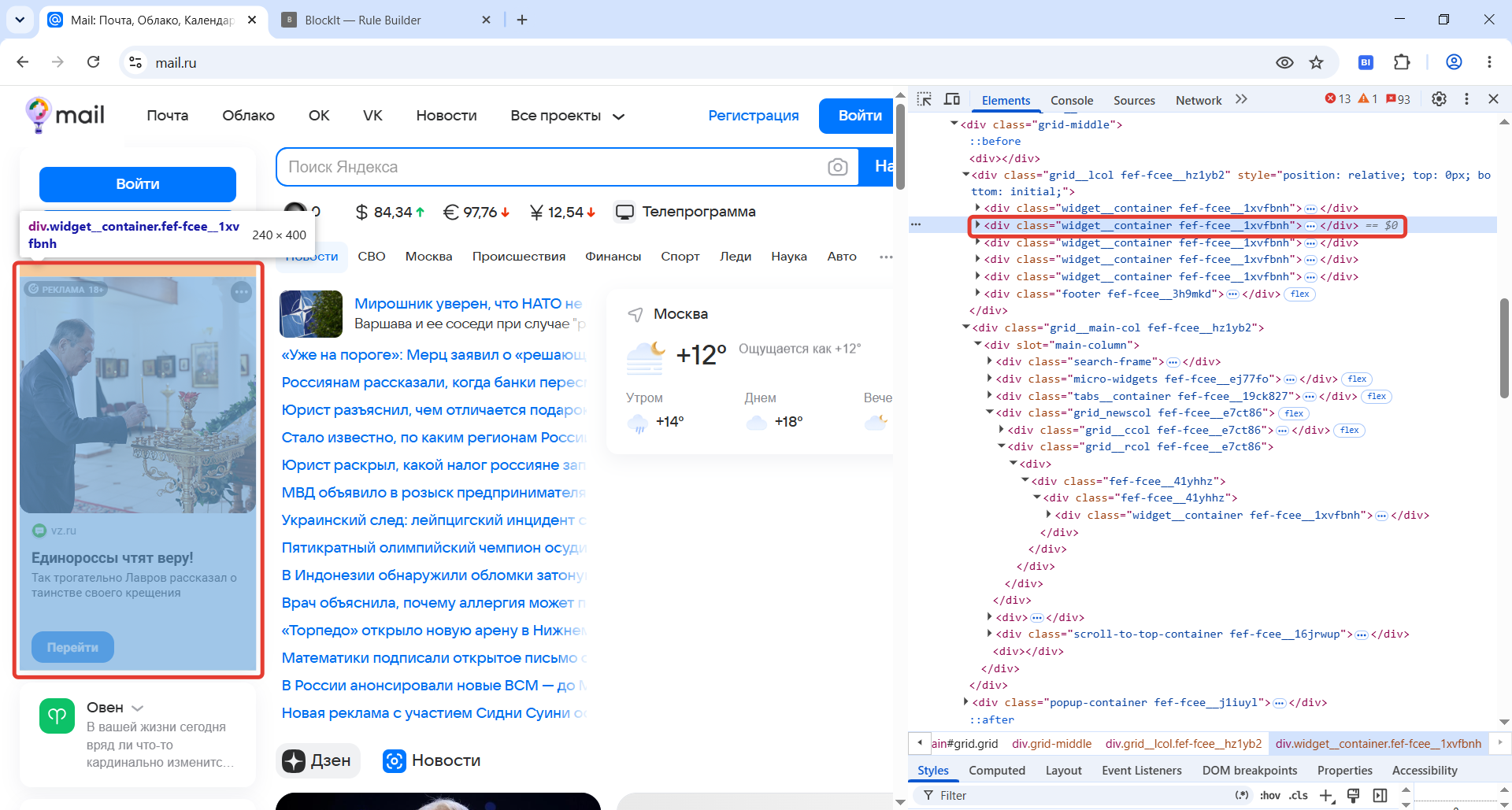
Before copying a selector or HTML, identify exactly which element should be blocked.
If a rule blocks too much or nothing at all, delete it and select a different element higher or lower in the HTML tree.
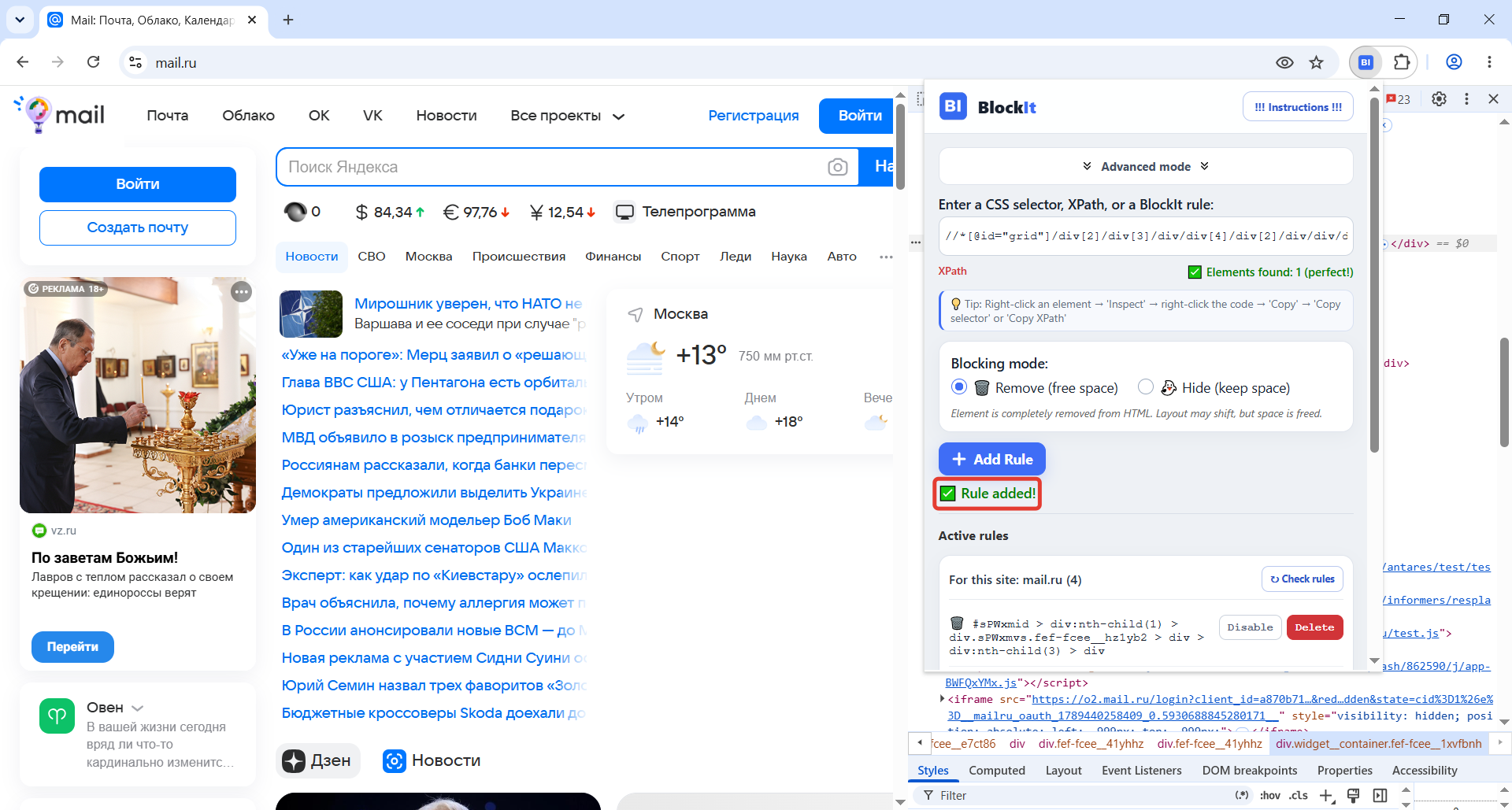
The rule usually takes effect immediately. If the element remains visible, reload the page.
First find the element in DevTools and inspect its tag, classes, and attributes.
Enable the relevant hints. Highlighting does not hide other methods; it only suggests a sensible place to start.
Recommended methods are highlighted below. Select any method to open its detailed instructions.
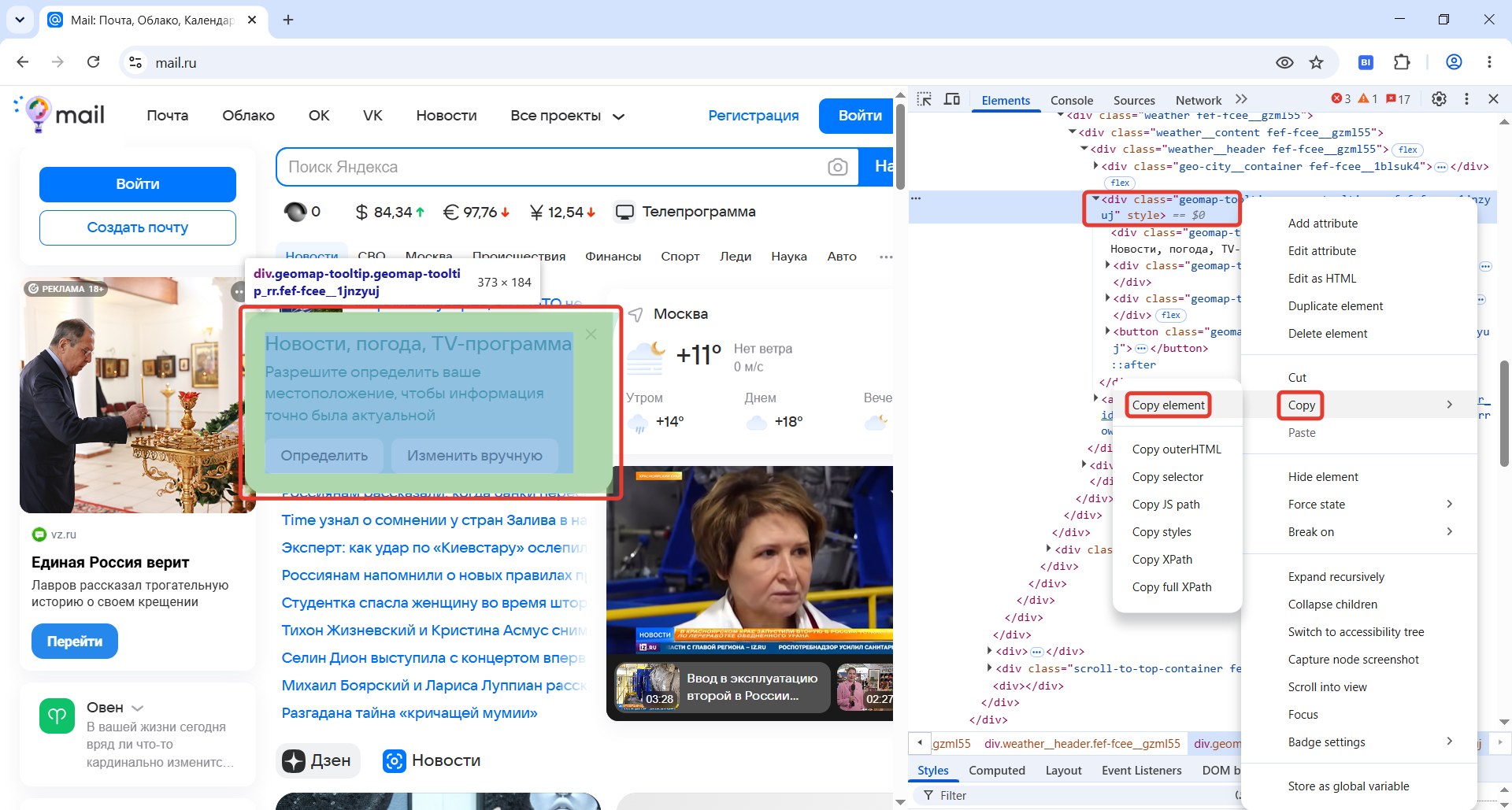
Start here to quickly test whether a standard selector can block the element. DevTools creates it automatically: select the element, then choose “Copy” → “Copy selector”.
Paste the selector into BlockIt’s main field, check the match count, and add the rule. If it becomes unreliable after a refresh, use StableHTMLFinder or the rule builder.
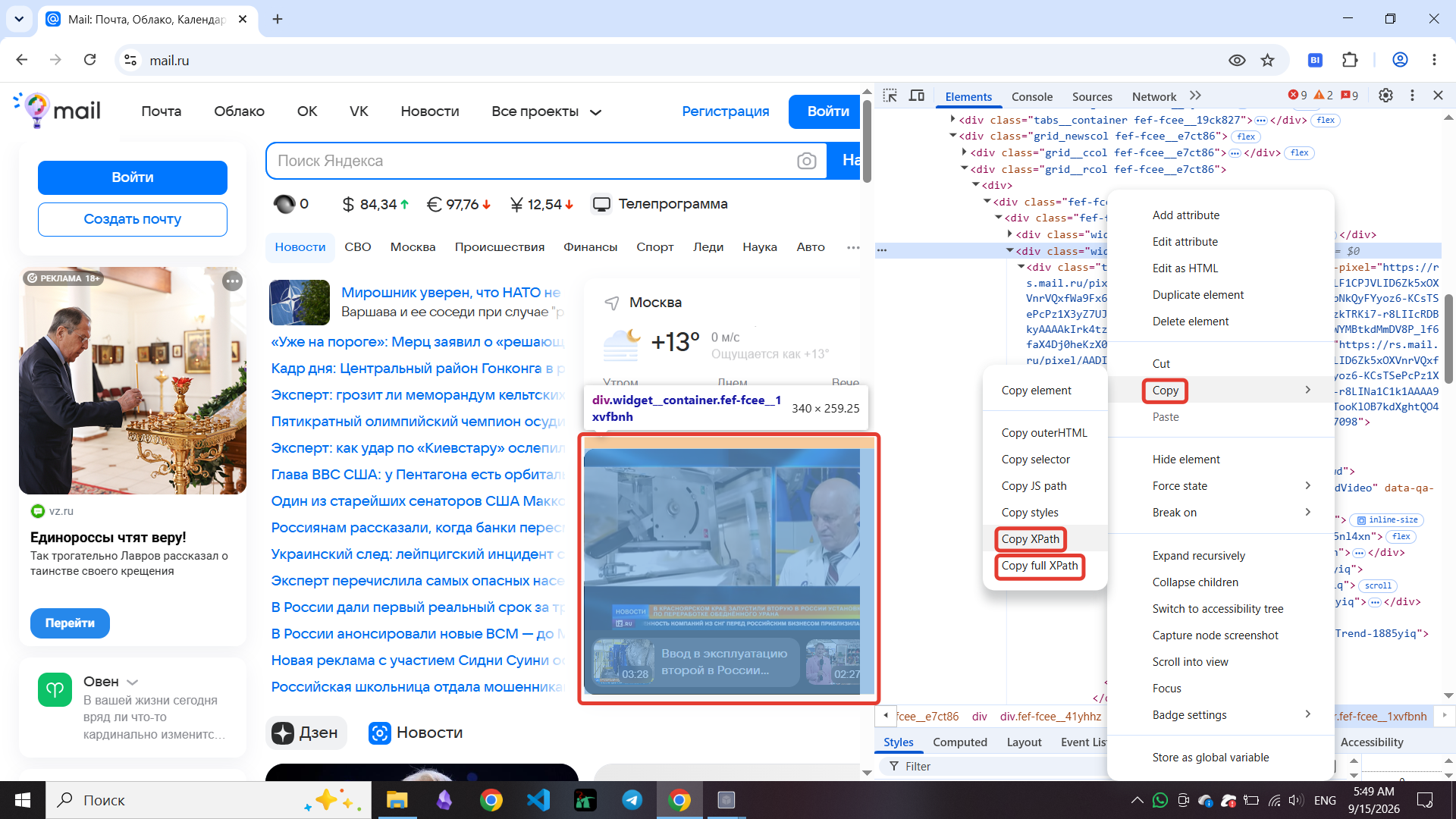
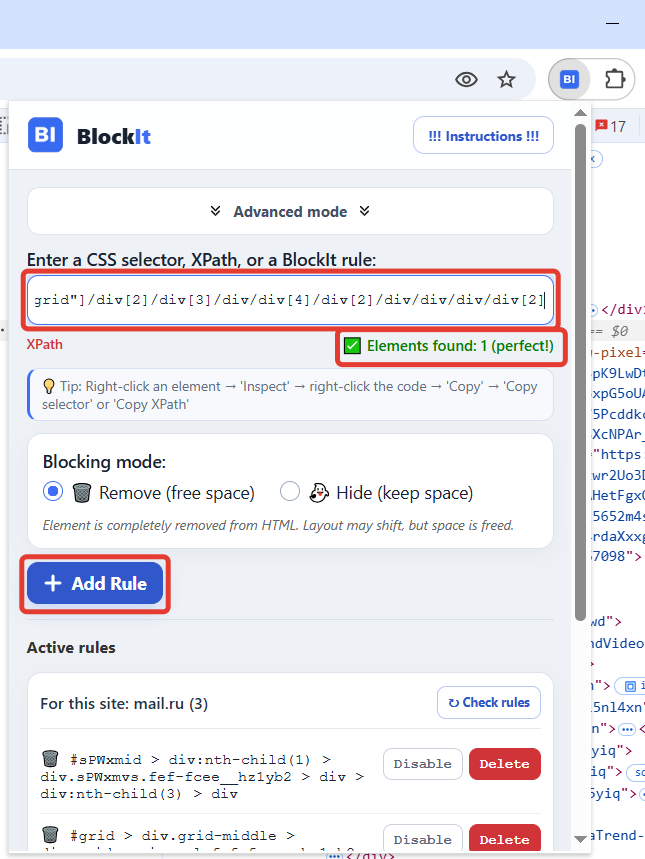
XPath describes a path to an element through the page structure. It can help when classes and other attributes are unstable but the path itself remains unchanged. Choose “Copy XPath” in DevTools, then paste the expression into BlockIt’s main field.
id. If that ID changes, the XPath is unstable too. An absolute path with position numbers will break when the HTML structure changes.BlockIt evaluates XPath separately in the main document and in each iframe, so an XPath copied from inside an iframe may work. Browsers do not evaluate XPath across a Shadow DOM boundary. In that case, use the rule builder or StableHTMLFinder to create a CSS-based or extended BlockIt rule.
This method gives you more control than a ready-made DevTools selector: after parsing the HTML, you choose which attributes go into the selector.
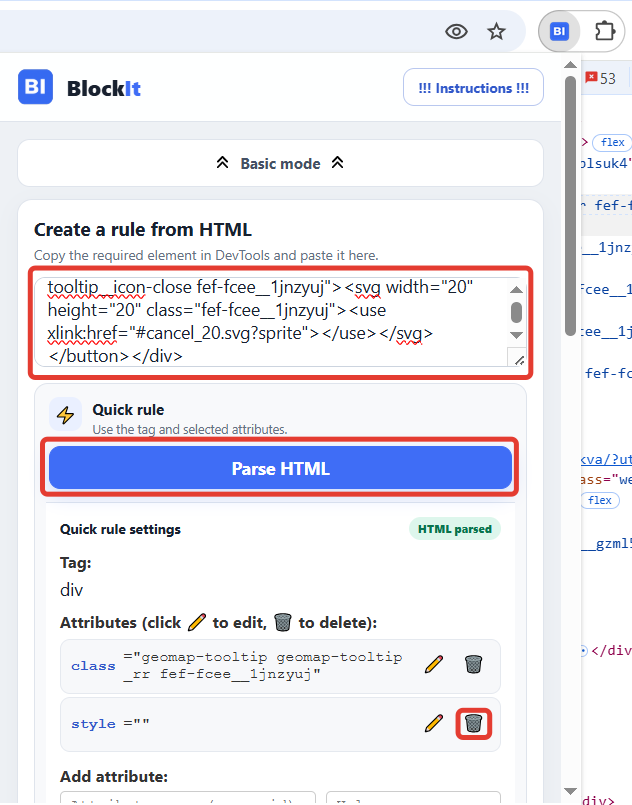
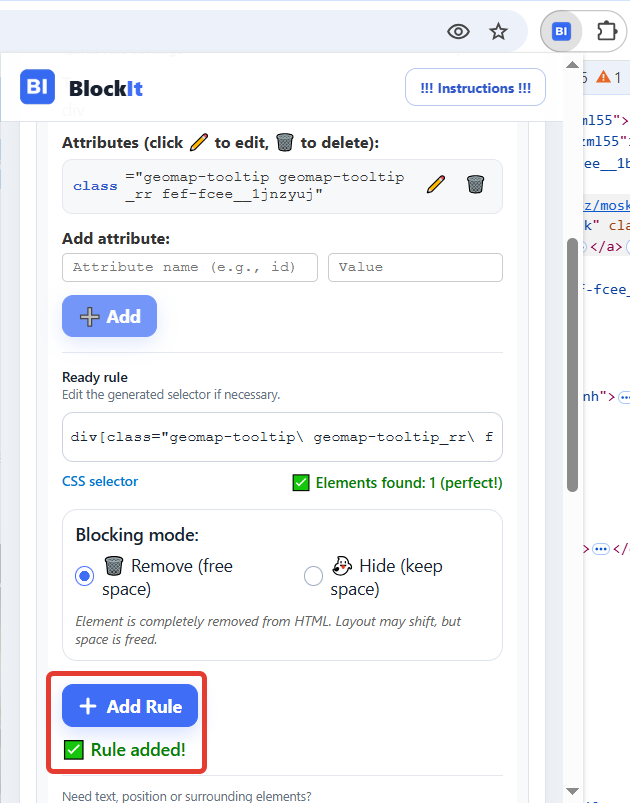
Install StableHTMLFinder from the Chrome Web Store
Detailed guide: StableHTMLFinder instructions.
StableHTMLFinder helps when classes and IDs are obfuscated, change between loads, or the page contains many similar blocks. It is often easier than inspecting HTML manually, but analysis takes time because the extension must load the page several times.
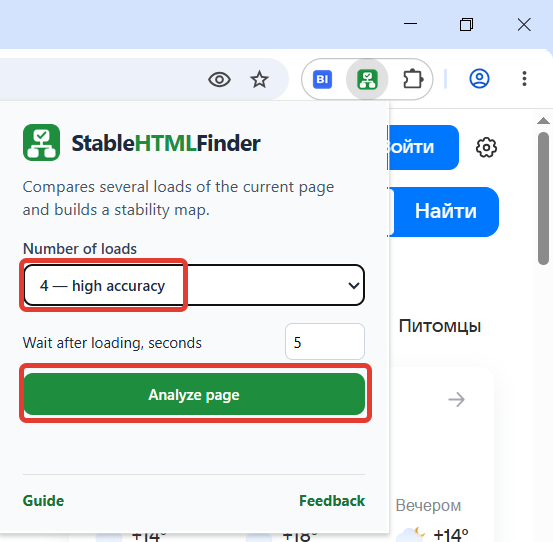
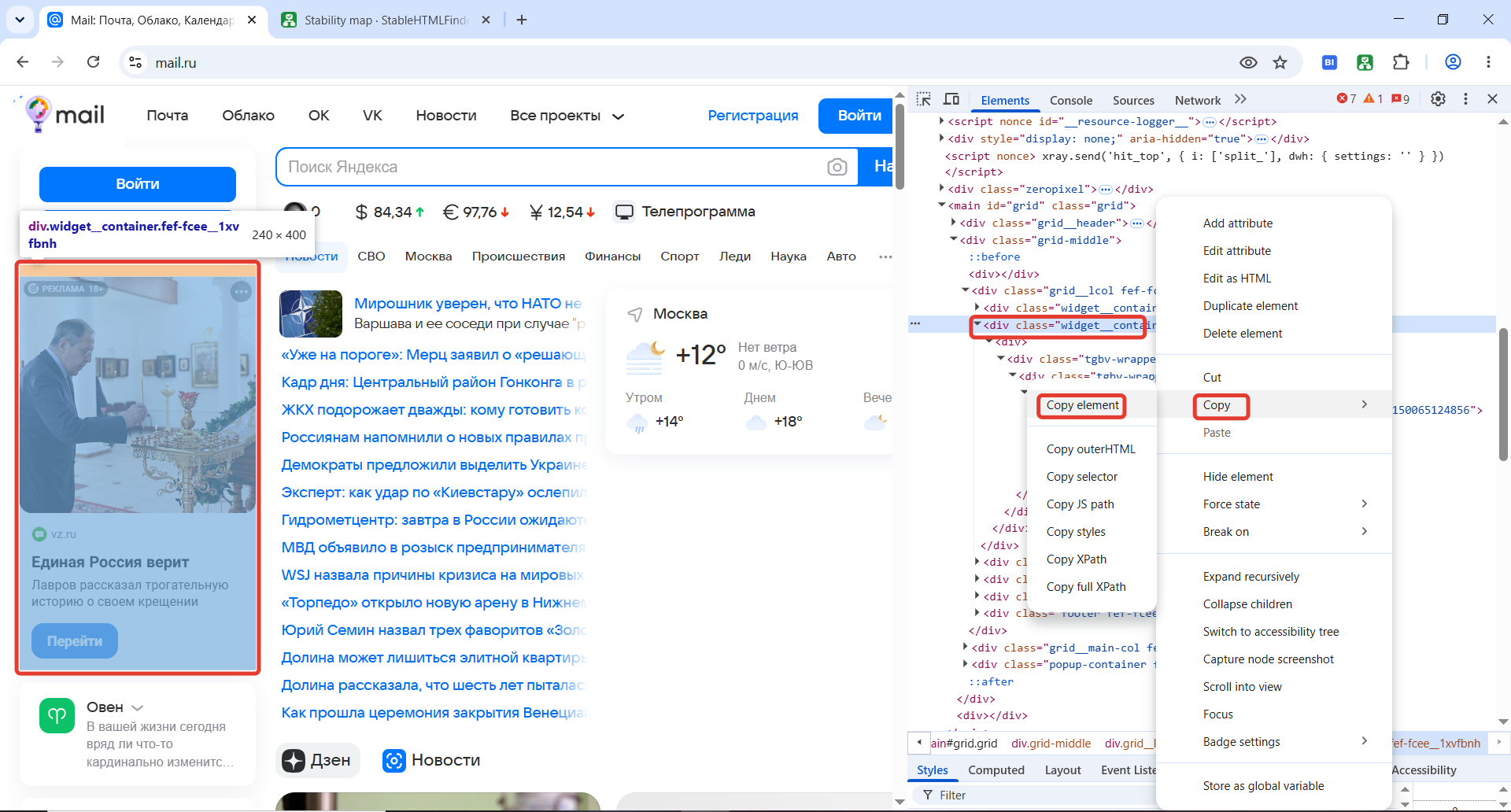
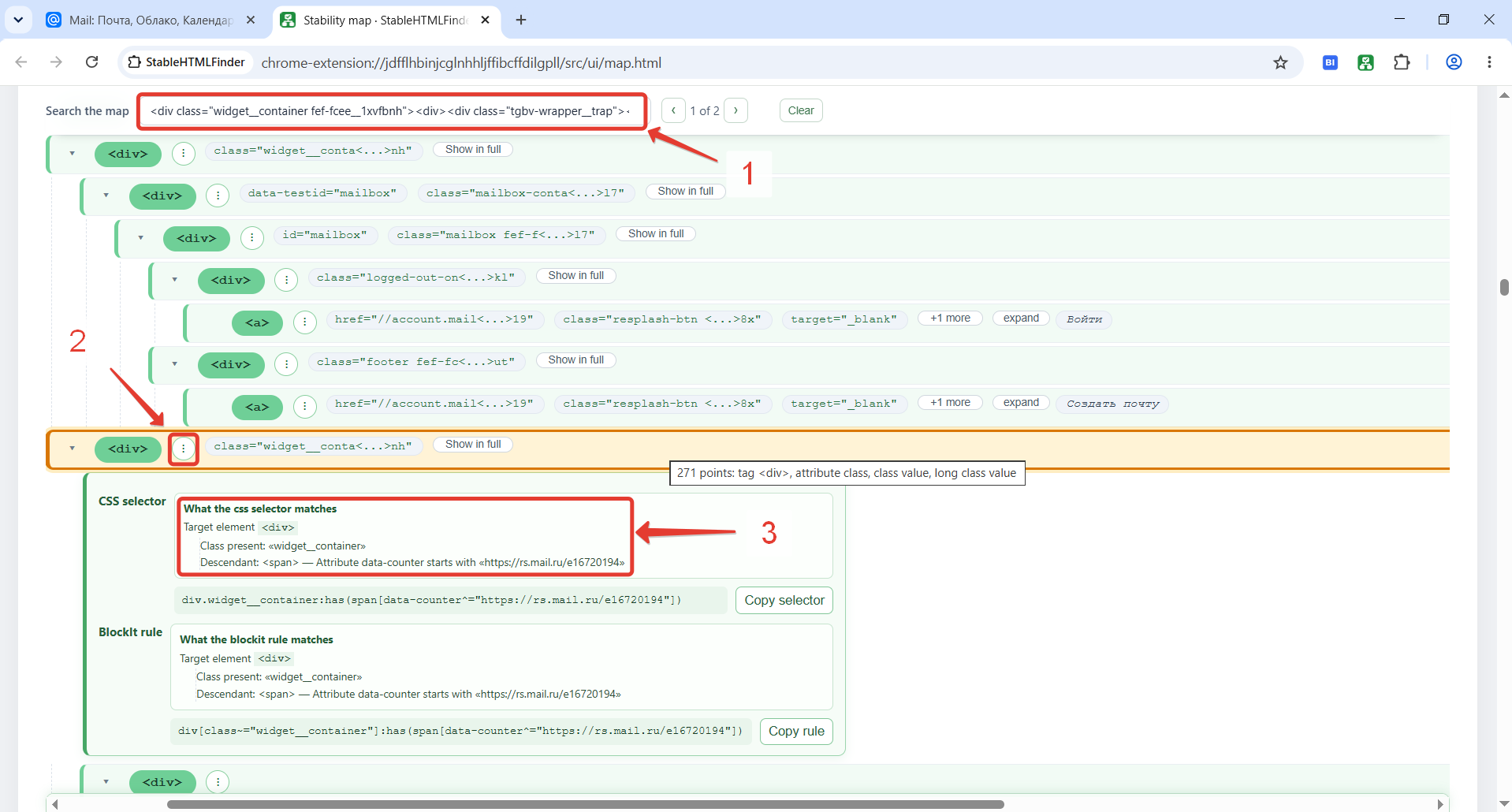
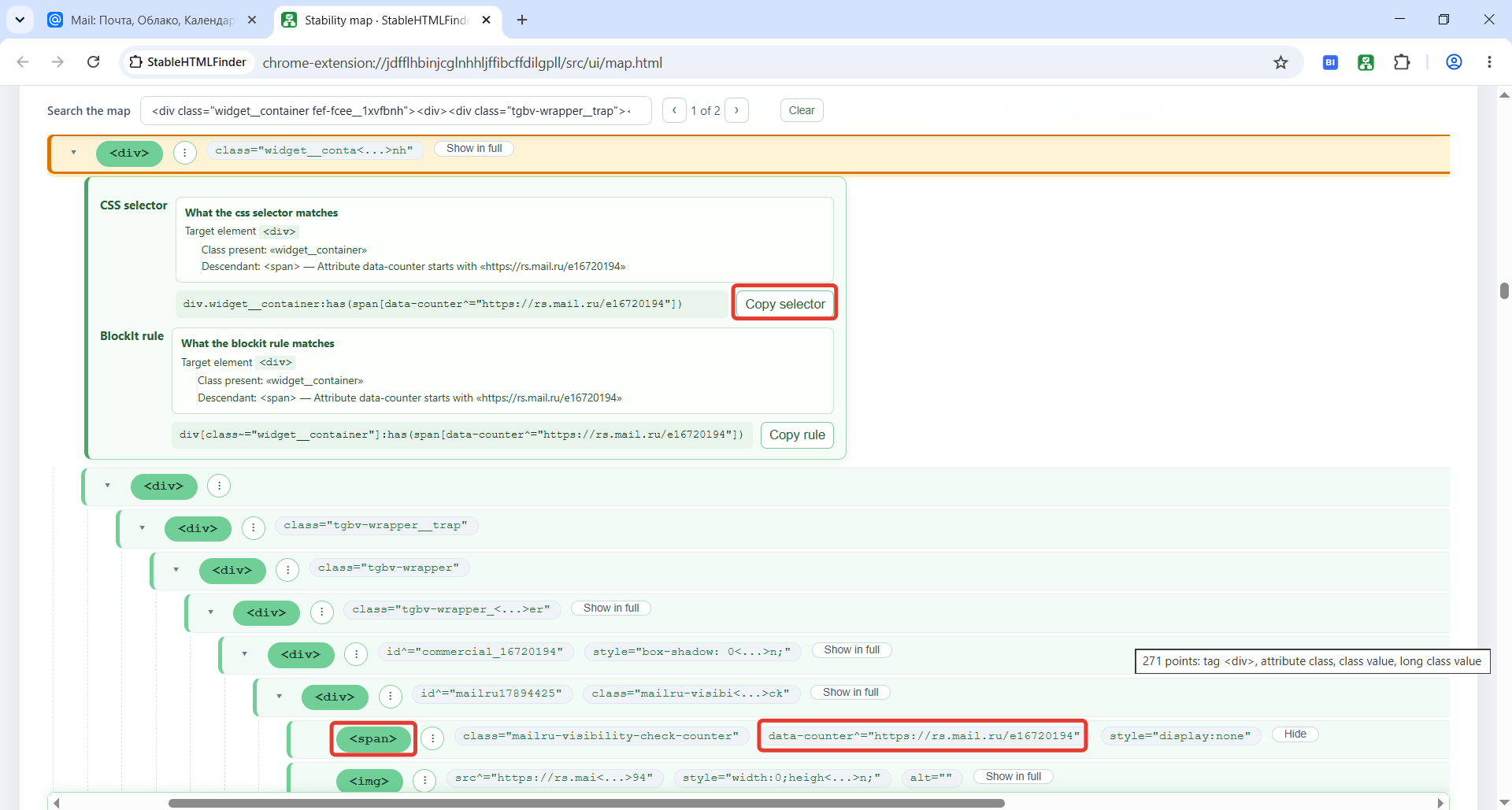
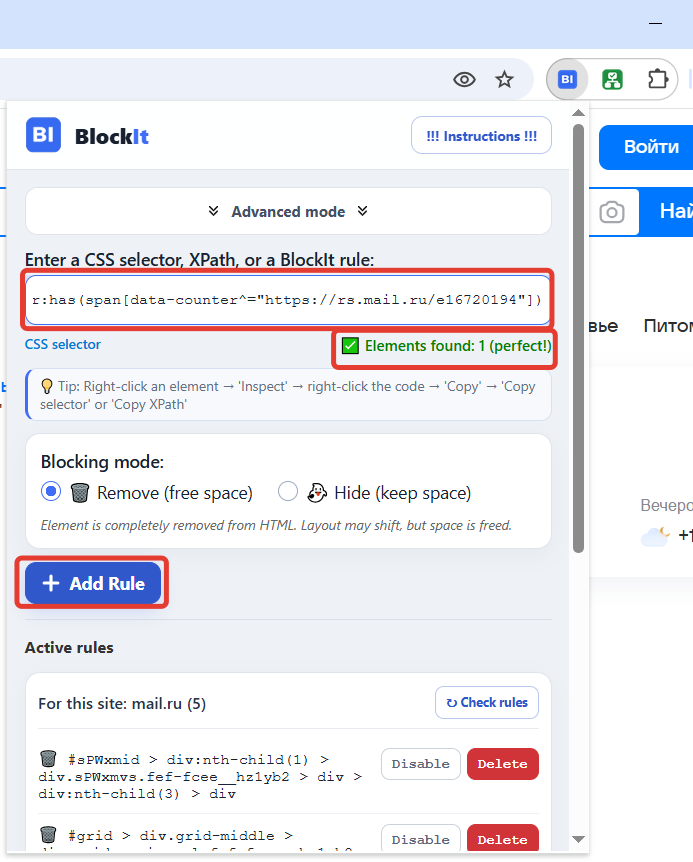
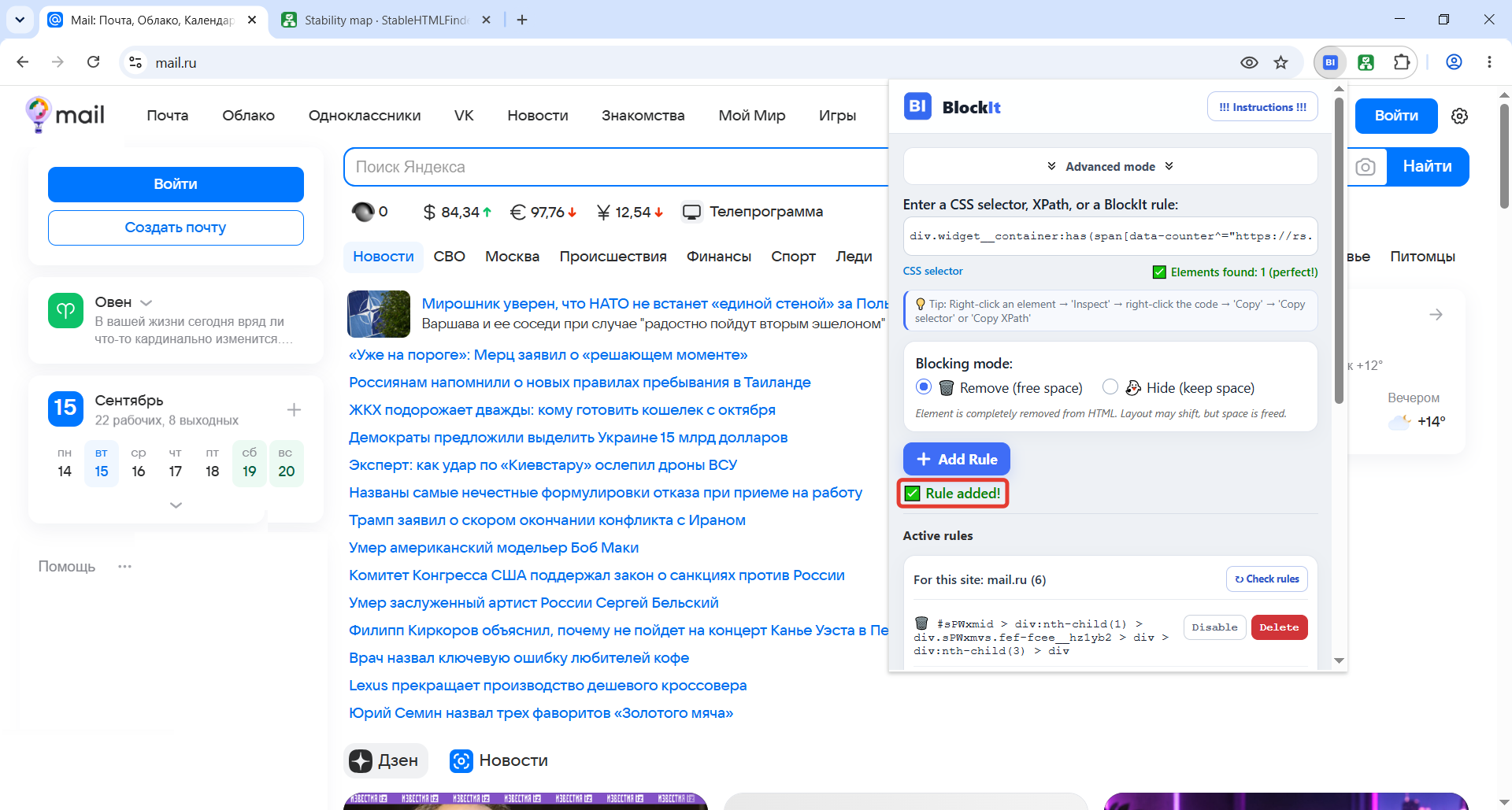
StableHTMLFinder does not block elements itself. It helps you choose a foundation for a BlockIt rule:
The rule builder is a powerful tool for creating precise rules without knowing CSS, XPath, or BlockIt syntax. It works for both stable and unstable elements: a rule can use text, attribute or class counts, sibling position, and surrounding elements instead of a specific class.
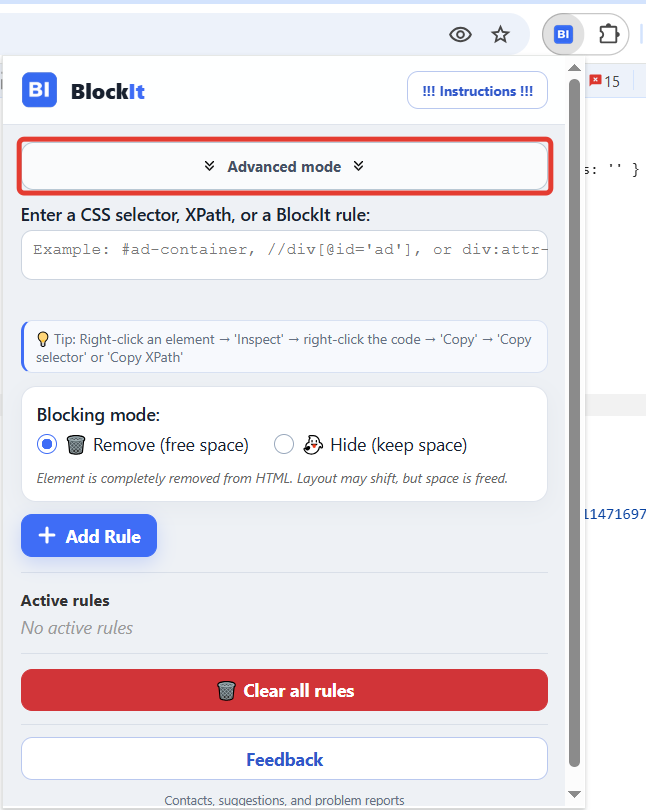
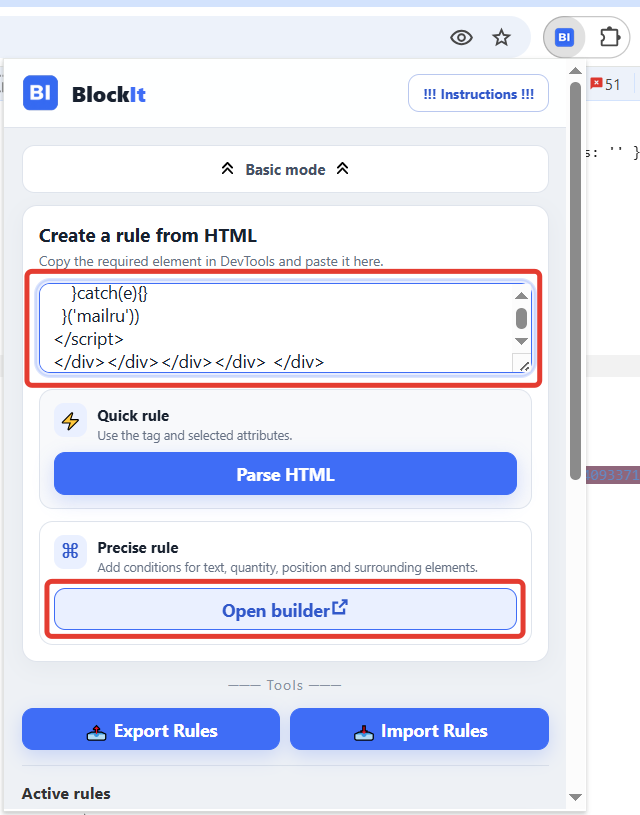
Copy the element’s HTML in DevTools, open BlockIt’s “Advanced mode,” paste the HTML into the corresponding field, and click “Open rule builder.”
Each card describes one HTML element: its tag, attribute count, and conditions based on attributes, text, and position.
Ancestors appear above. Descendants appear below with an indent. Siblings are shown at the same nesting level.
You can disable automatically inserted values. Do not use changing IDs and classes merely because they were found in the HTML.
Check the match count immediately, then use “Check after refresh” to verify that the result remains stable.
Whenever possible, keep only the traits that are necessary and reasonably stable. If you want to check matches in DevTools, use traits that the builder can express as a regular CSS selector. The label next to the preview tells you what was generated: “CSS selector” or “BlockIt rule.”
:nth-child(). Selecting a position among the matches of the whole rule is a separate BlockIt feature.0 means an immediately adjacent sibling.If the preview says “BlockIt rule,” you cannot test it as CSS in DevTools. Add such traits when they are needed to make the rule precise. You can enter the rule in StableHTMLFinder’s stability-map search to see which mapped elements match it. A CSS selector, on the other hand, can be copied and tested in DevTools.
You can add a direct parent or any ancestor to the target and its ancestors. The target can also have a child, descendant, or sibling; siblings can have descendants of their own. The distance to a sibling can be taken into account when needed. Related elements have an “May be absent” switch.
Sibling position is an element’s place among children of one parent. Position in rule results is its place among all elements found by the complete rule. These are different conditions.
Read the plain-language description in “Rule preview.” It helps reveal an attribute, text condition, or relationship that was included by accident. Then check the match count on the current page and after a refresh.
class attribute name.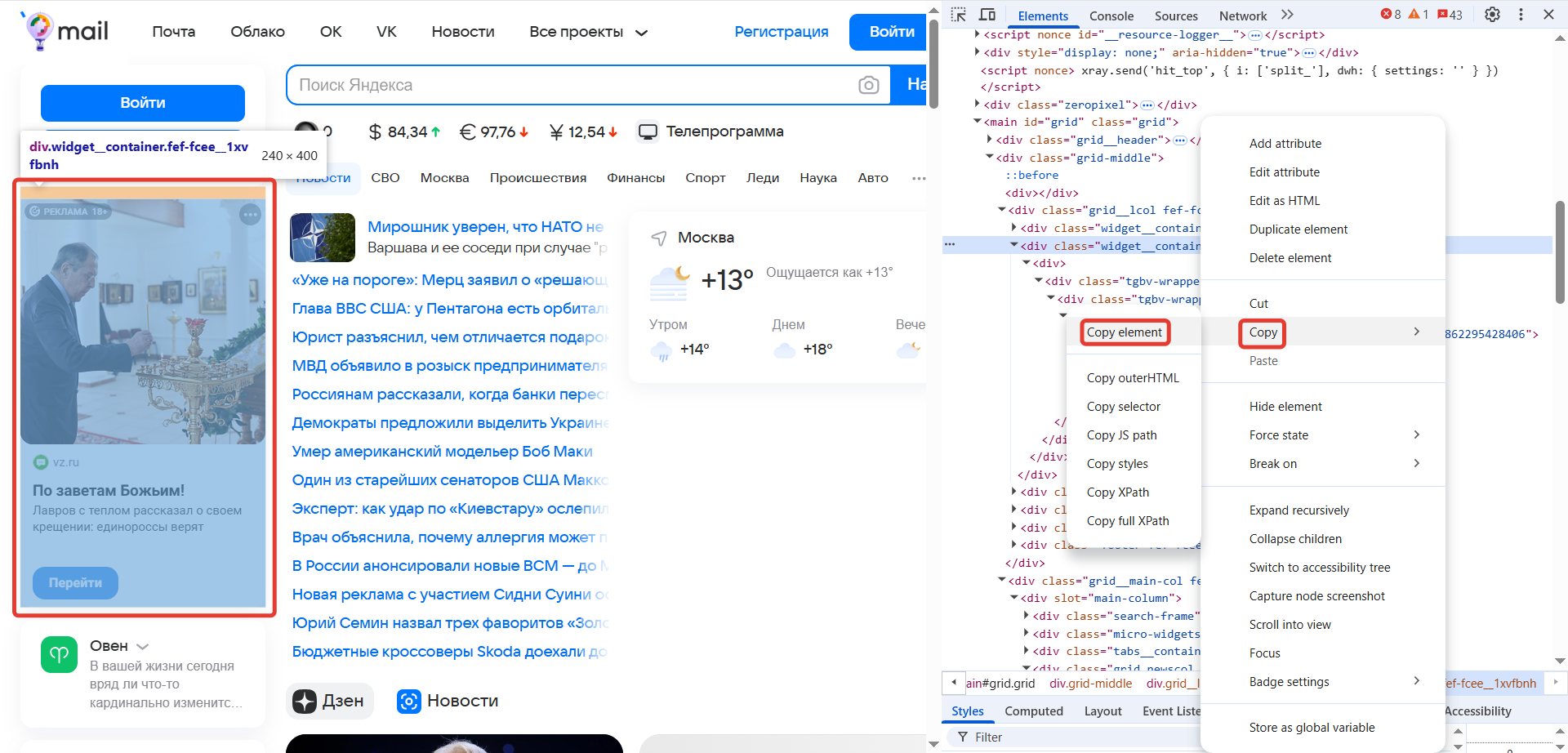
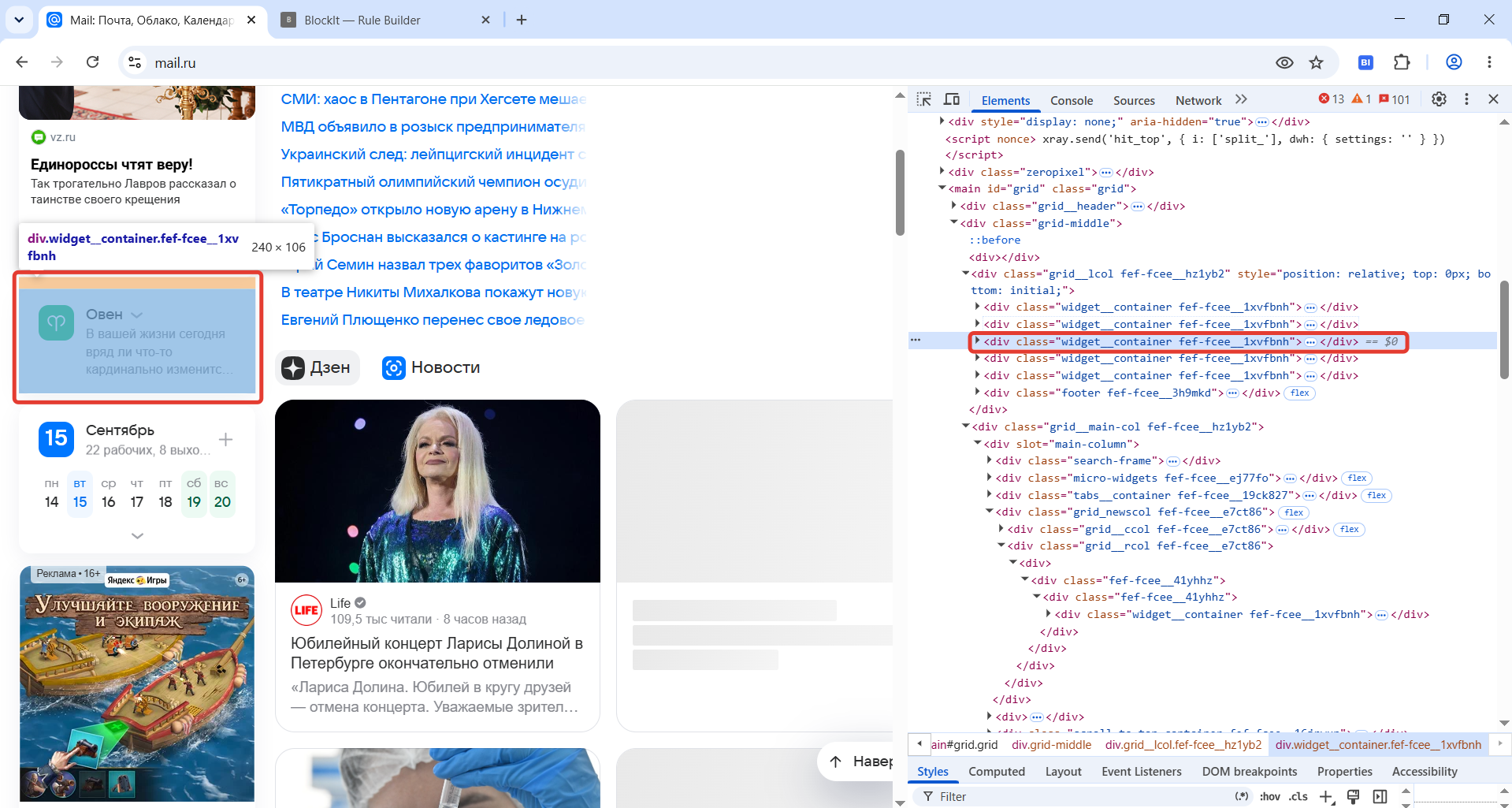
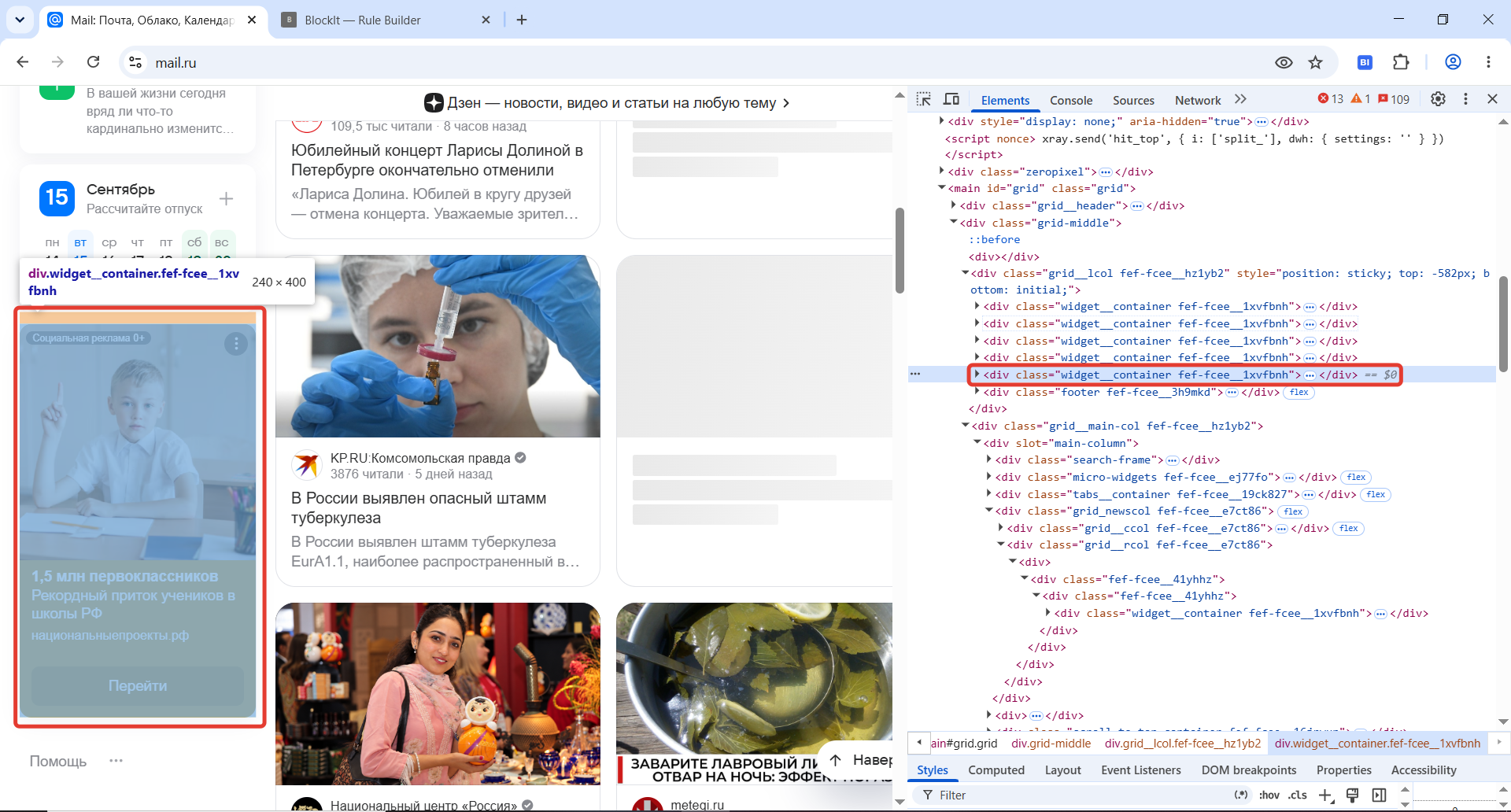
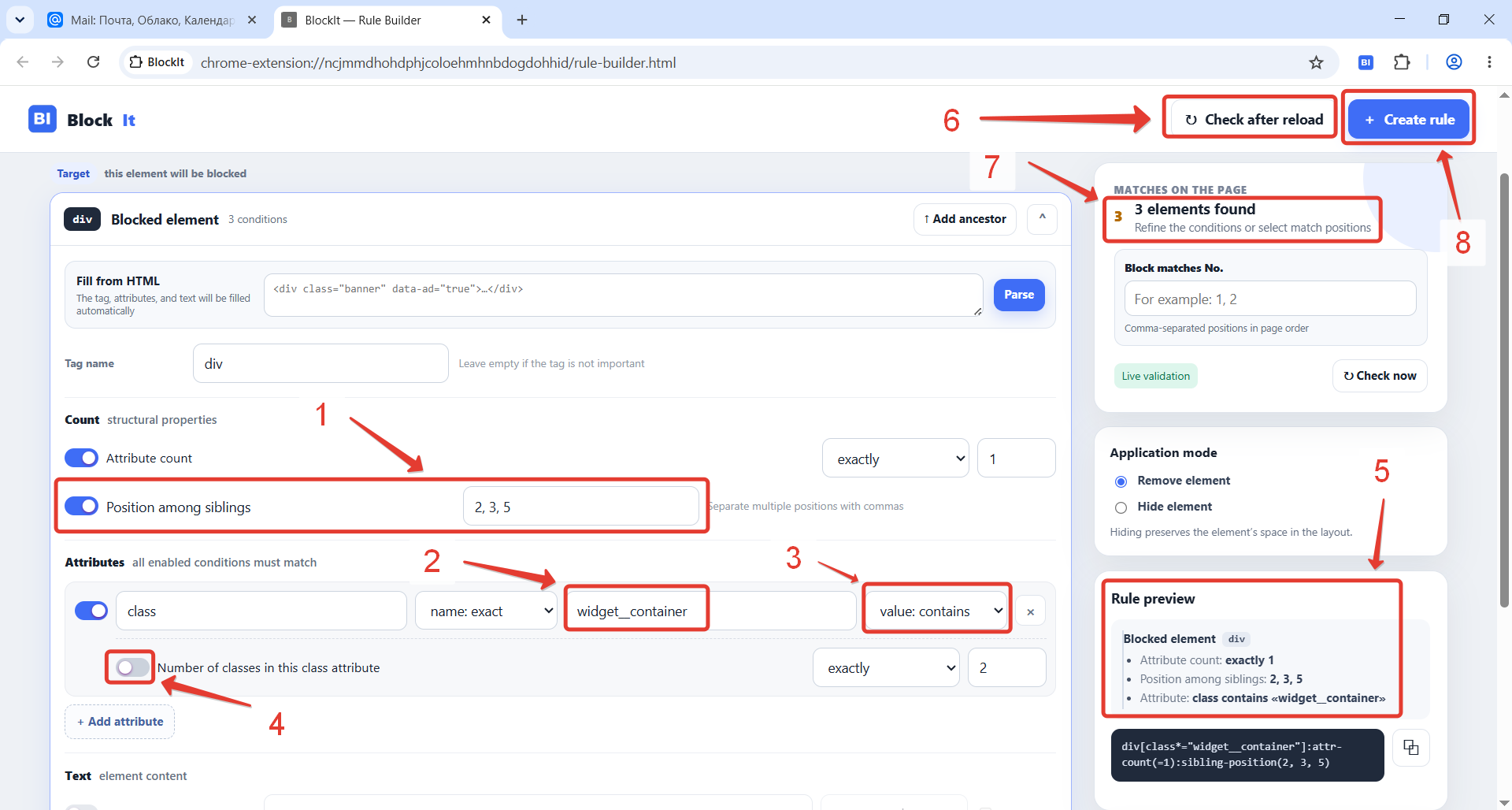
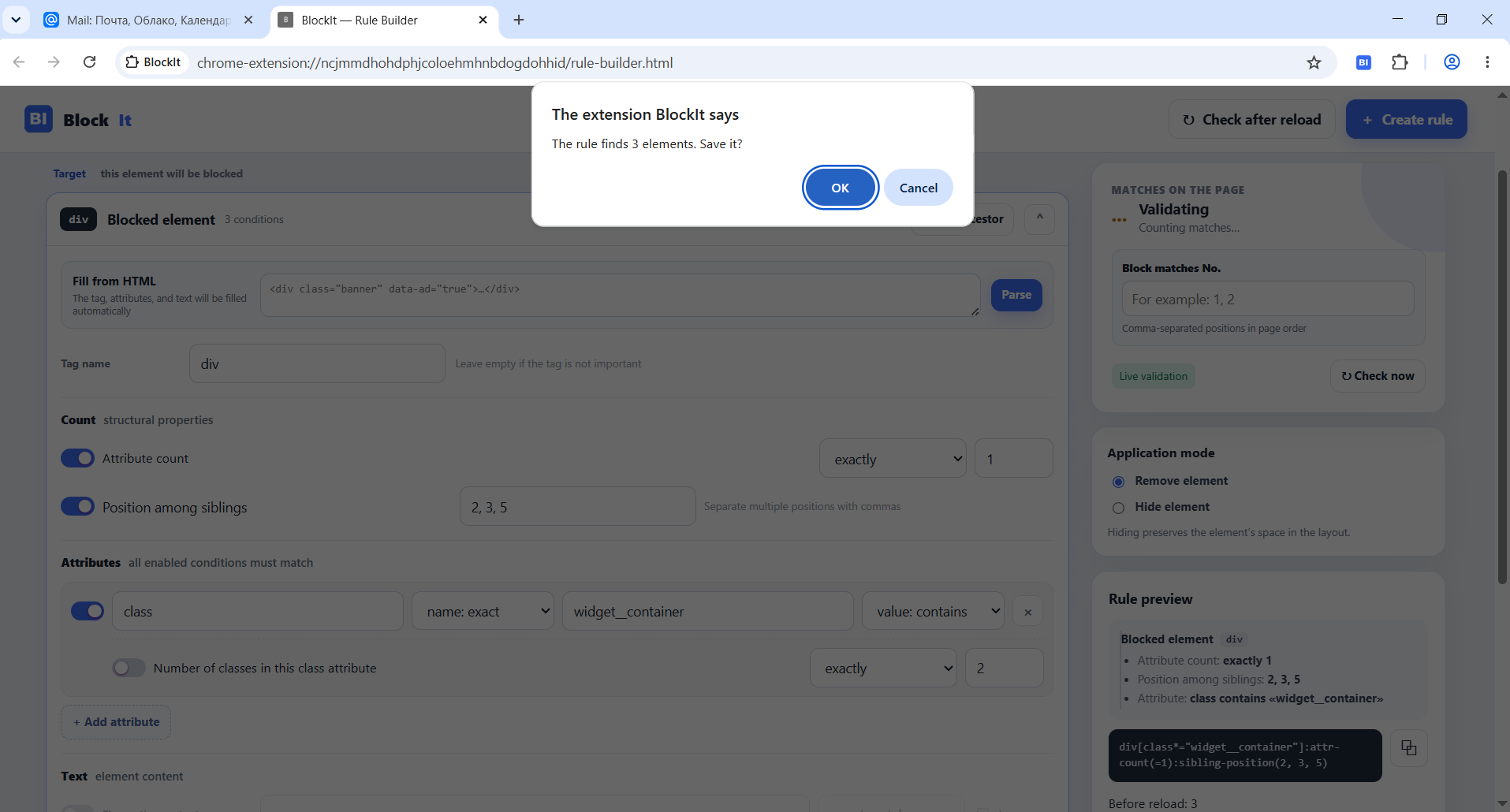
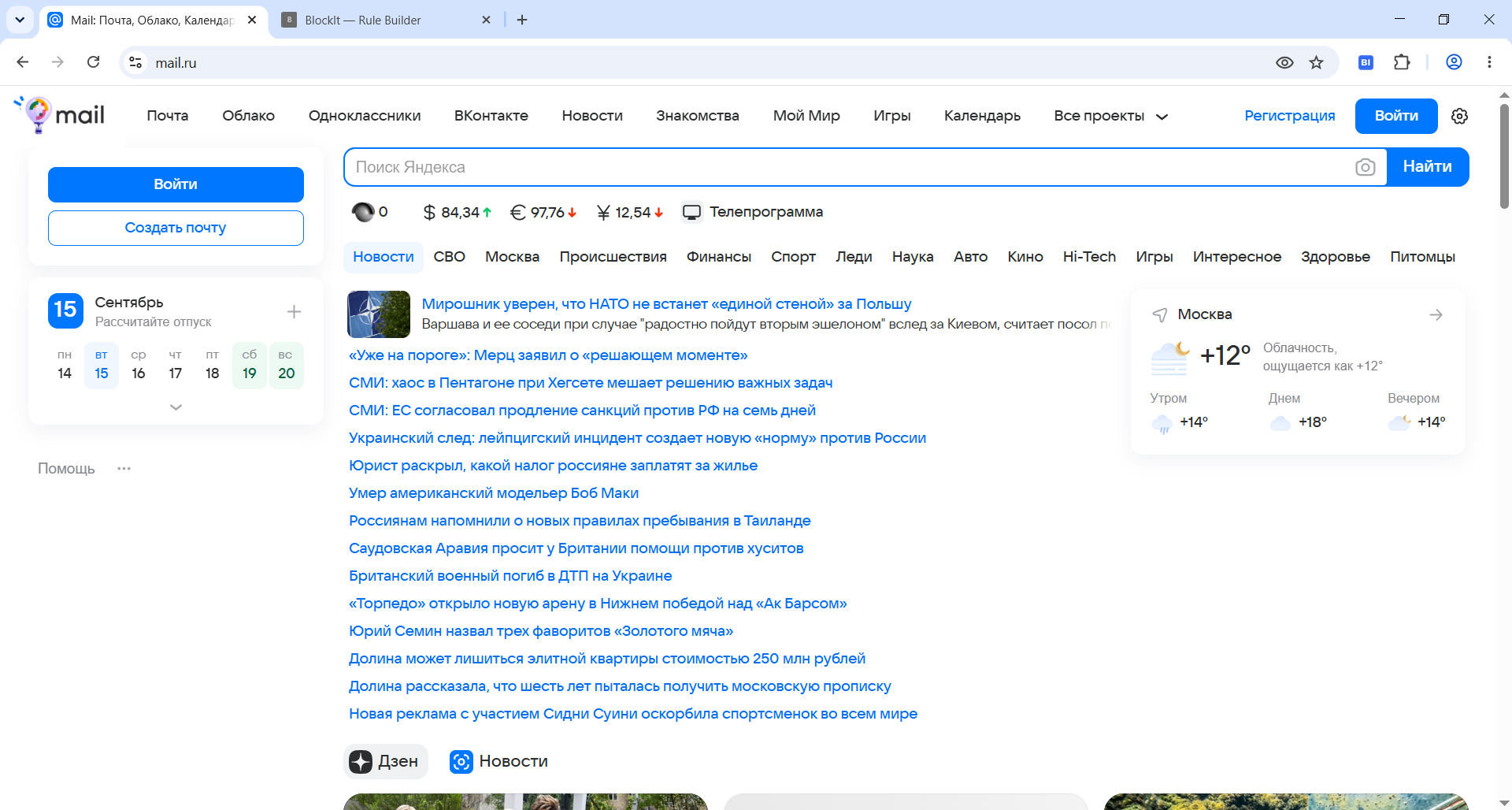
Start with a CSS selector from DevTools for a quick result. A quick HTML rule is useful when the element traits look stable but you want control over which attributes are used. If the traits are unstable or random-looking, or the page has many similar blocks, use StableHTMLFinder or the rule builder.
Selectors find an element on a web page by its properties: tag, class, identifier, attributes, or position in the HTML structure.
In CSS styles, selectors apply formatting. In BlockIt, selectors are used only for finding elements. We do not set colors, fonts, or spacing—we simply find an element in order to block it.
These examples will help you read and make small edits to ordinary CSS selectors.
1 of 3.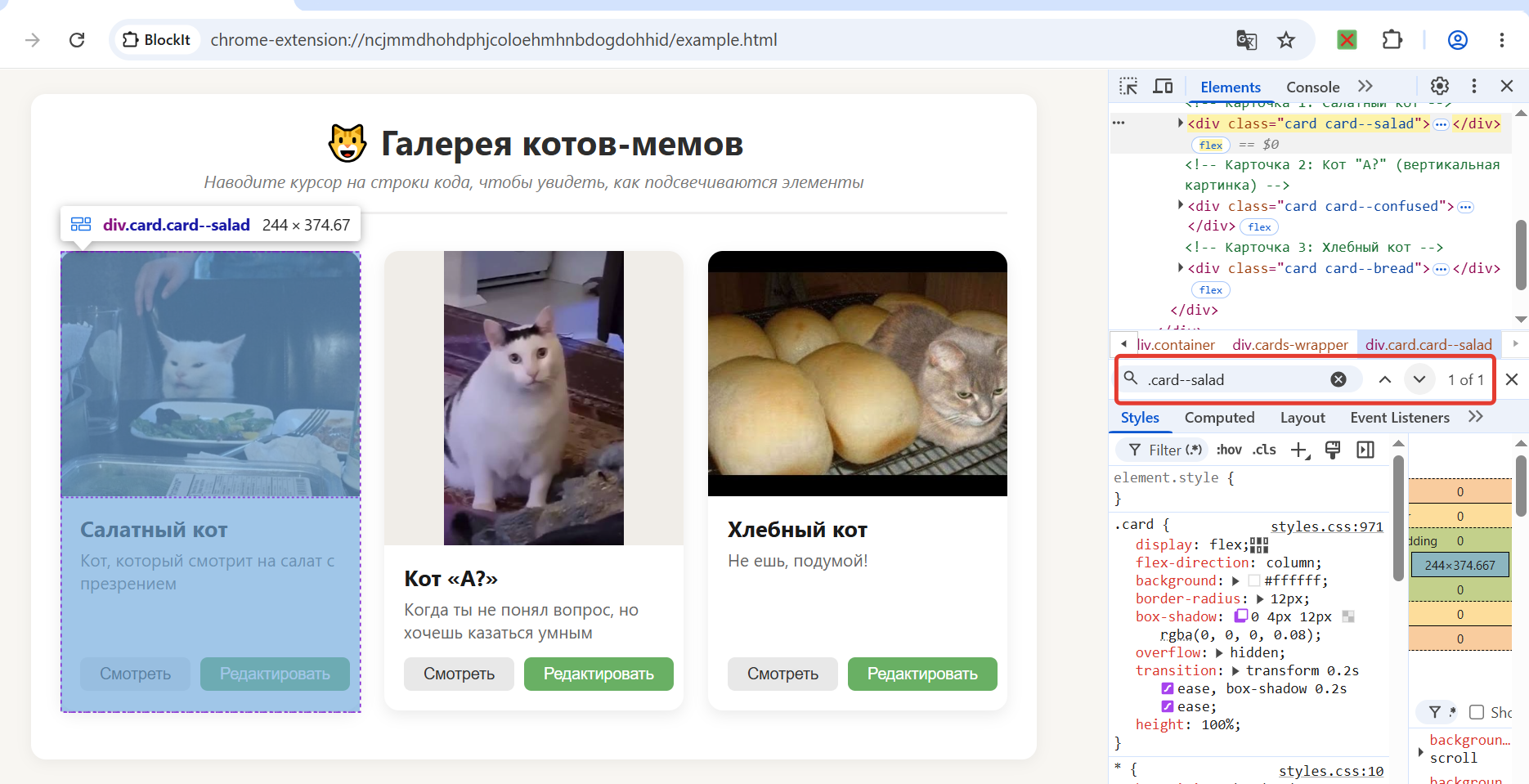
*)Finds every element on the page. Use it with care: it returns everything in the HTML.
Selector: *
What it finds: every element without exception.
Finds all elements with the specified HTML tag.
Selectors: h1, p, button, div
What they find:
h1 — all first-level headings;p — all paragraphs;button — all buttons;div — all <div> containers..class)Finds all elements with the specified class in their class attribute. Write multiple classes together without spaces.
Selectors: .card, .card__title, .card.featured
What they find:
.card — all elements with the card class;.card__title — all elements with the card__title class;.card.featured — elements that have both the card and featured classes.An element may have other classes as well: for example, class="card featured compact" also matches .card.featured. To match the complete class string exactly, you can use [class="card featured"], but that selector depends on class order and does not allow additional classes.
#id)Finds an element with a unique id. A page should contain only one element with that ID.
Selectors: #salad-cat, #confused-cat, #bread-cat
What they find:
#salad-cat — the element with id="salad-cat";#confused-cat — the element with id="confused-cat";#bread-cat — the element with id="bread-cat".[attribute="value"])You can check an attribute for an exact value or merely for its presence. Write multiple conditions together.
Selectors: [data-type], [data-type="description"], [data-type="description"][aria-label="Card"], [class~="card"], [class="card featured"]
What they find:
[data-type] — elements with a data-type attribute of any value;[data-type="description"] — elements whose data-type value is exactly description;[data-type="description"][aria-label="Card"] — elements where both attributes match;[class~="card"] — elements whose class list contains the separate class card;[class="card featured"] — elements whose entire class attribute exactly matches the given string.[href^="https://"]https://[src$=".png"].png[class*="advert"]advert anywhere[class~="card"]card[lang|="en"]en or starts with en-, such as en-US[aria-label*="advertisement" i]A selector checks only the attributes it lists and does not prohibit others. For example, [data-type="description"][aria-label="Card"] finds <div data-type="description" aria-label="Card" title="Details">: the extra title attribute does not prevent a match. A standard CSS selector cannot require an element to have no other attributes.
A tag, class, ID, and attribute conditions can be combined without spaces so that every trait applies to the same element.
Selectors: h2.card__title, div.card.featured, div[data-type="description"], article.card[data-type="advertisement"][aria-label="Advertisement"]
What they find:
h2.card__title — an <h2> with the card__title class;div.card.featured — a <div> with the card and featured classes; other classes are allowed;div[data-type="description"] — a <div> with the specified attribute; other attributes are allowed;article.card[data-type="advertisement"][aria-label="Advertisement"] — an <article> with the card class whose attribute values exactly equal data-type="advertisement" and aria-label="Advertisement".Finds elements located inside another element at any nesting level.
Selector: .card .btn
What it finds: all elements with the btn class inside an element with the card class.
>)Finds elements that are direct children of another element. It searches only one level down.
Selector: .card__body > .card__title
What it finds: elements with the card__title class that are direct children of an element with the card__body class.
+)Finds the element that is the next sibling of another element at the same nesting level.
Selector: #confused-cat + .card__description
What it finds: a <p> immediately following the element with id="confused-cat".
Selects elements by their position among siblings.
Selector: .card__actions :nth-child(2)
What it finds: the second child inside an element with the card__actions class.
Standard CSS selectors have limitations. They cannot describe an attribute or class count without listing them, an element’s own text, arbitrary text inside it, regular expressions, or attribute-name patterns. For example, [data-*] is not a standard CSS selector. BlockIt rules are used for these cases: they extend standard CSS syntax with constructs such as [data-*], :attr-name(/^data-/), and other conditions. Read the BlockIt syntax documentation.
Created rules appear in the list for the current site or in the list of rules not tied to a domain. Rules made in the builder can be edited or deleted; disabled rules remain in the list with a corresponding label.
Find the rule in “Active rules” and click “Disable.” The rule stays in place with a “Disabled” label but is no longer applied. If it has already removed an element from the open page, refresh the page to restore its original content.
Find the rule in “Active rules” and click “Delete.” To restore an element already removed from the open page, reload it with F5 or the tab’s refresh button.
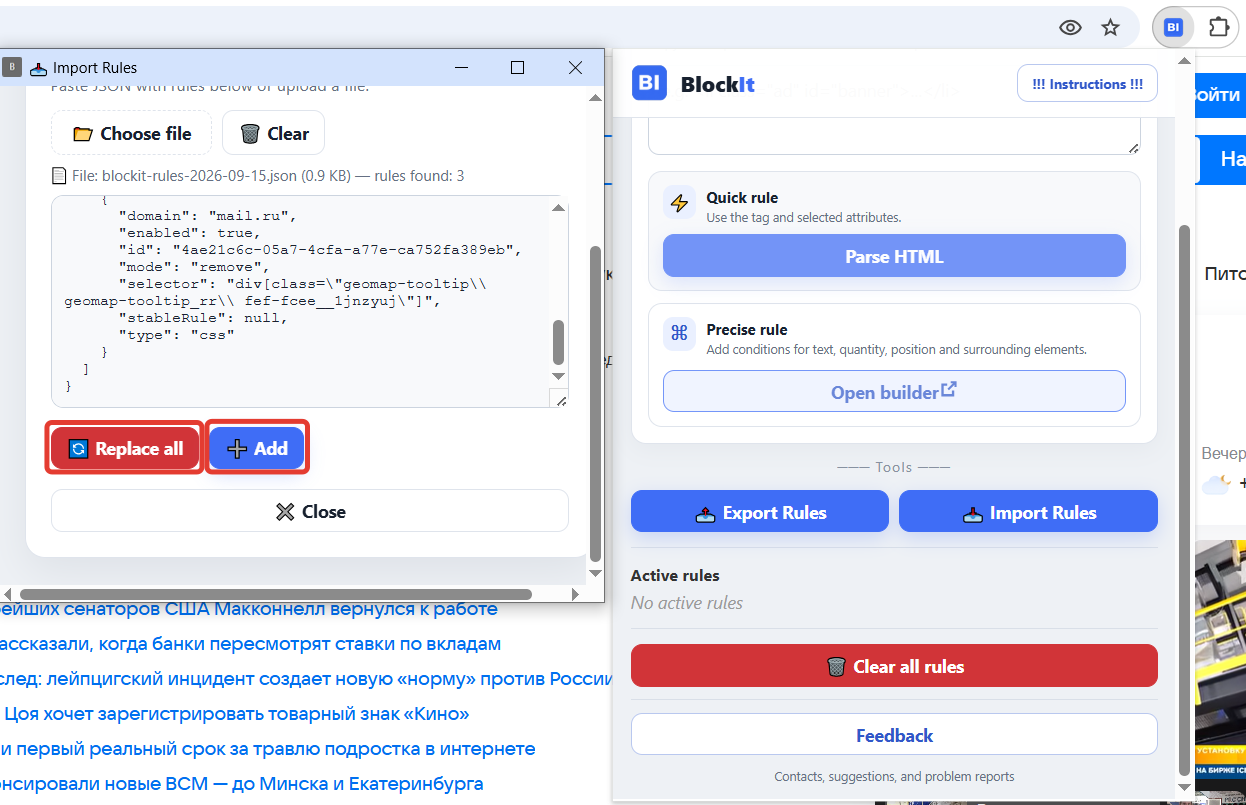
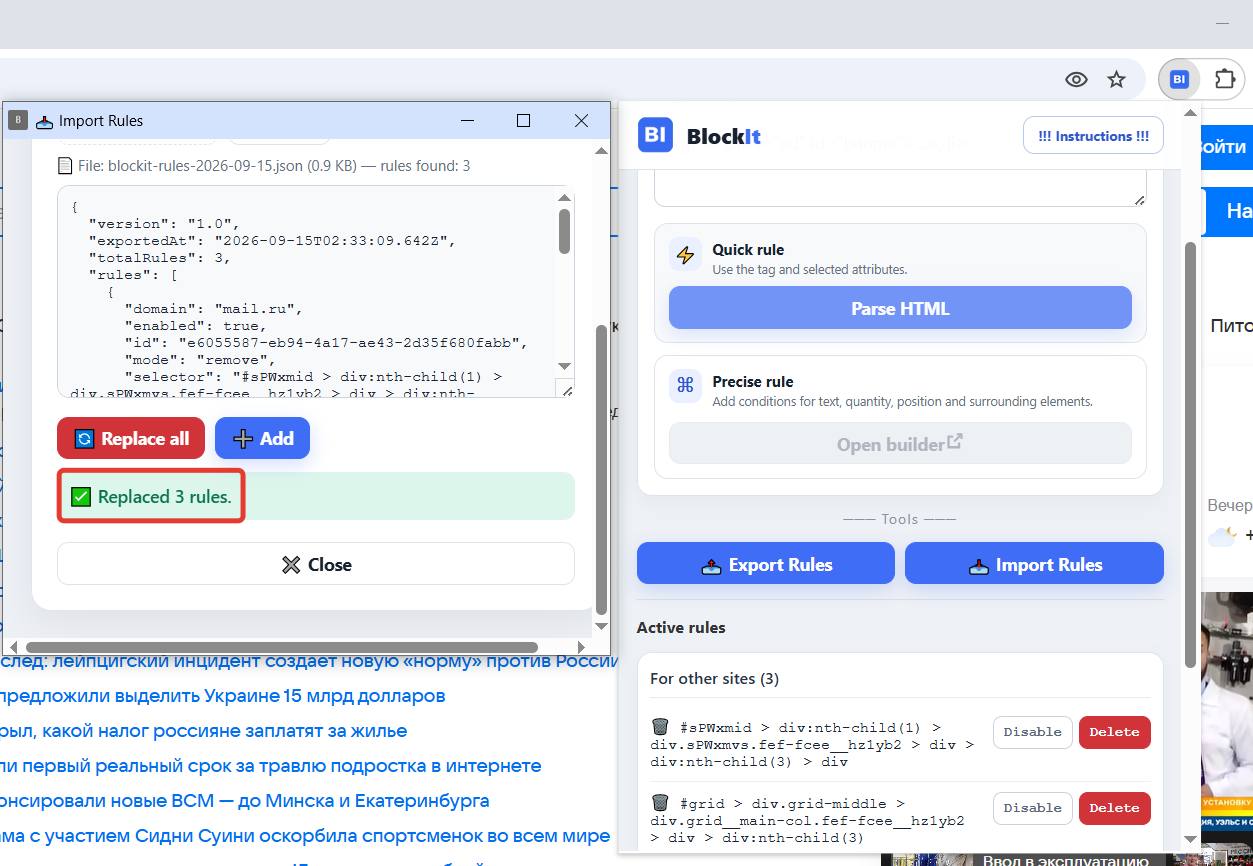
Export saves rules to a file. Import adds rules from such a file or replaces the current list with them. Use this feature to transfer settings and share them between devices.
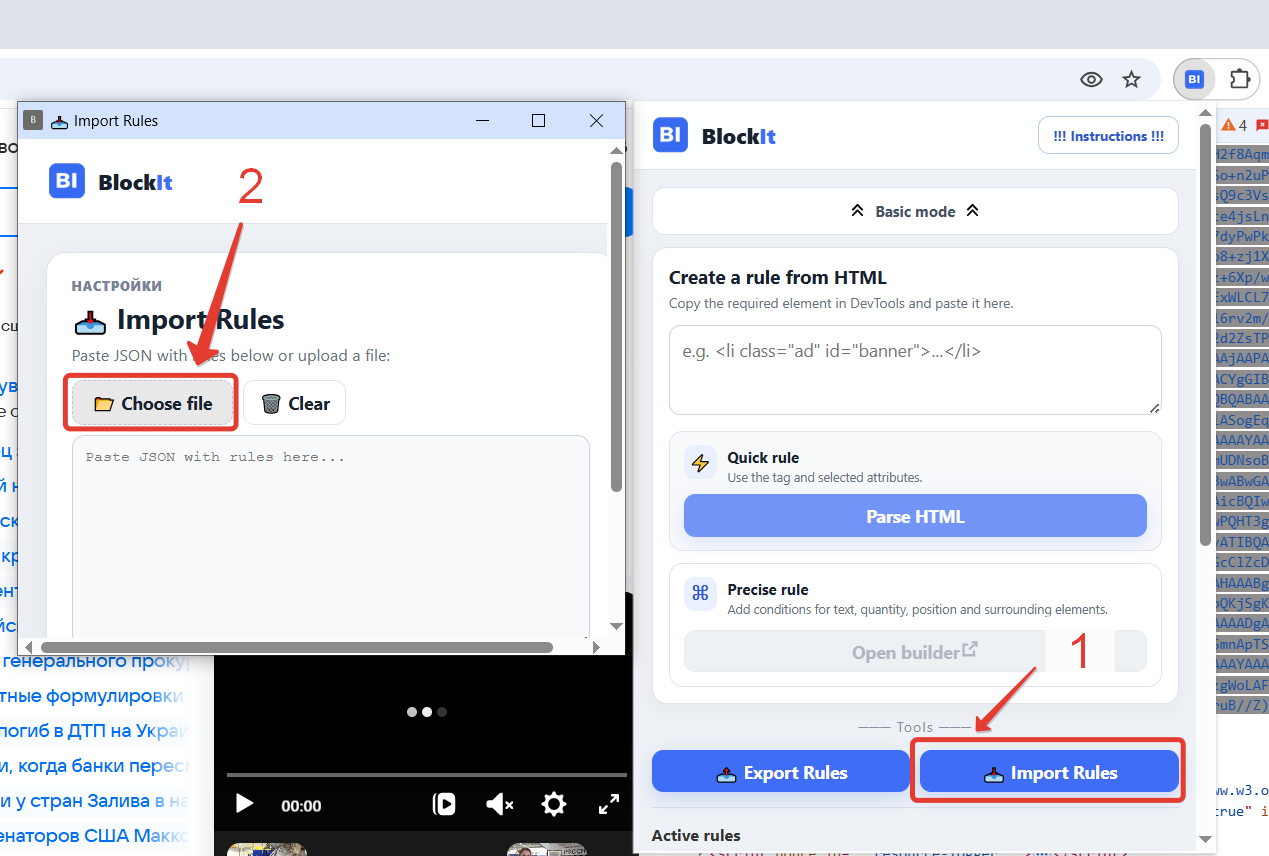
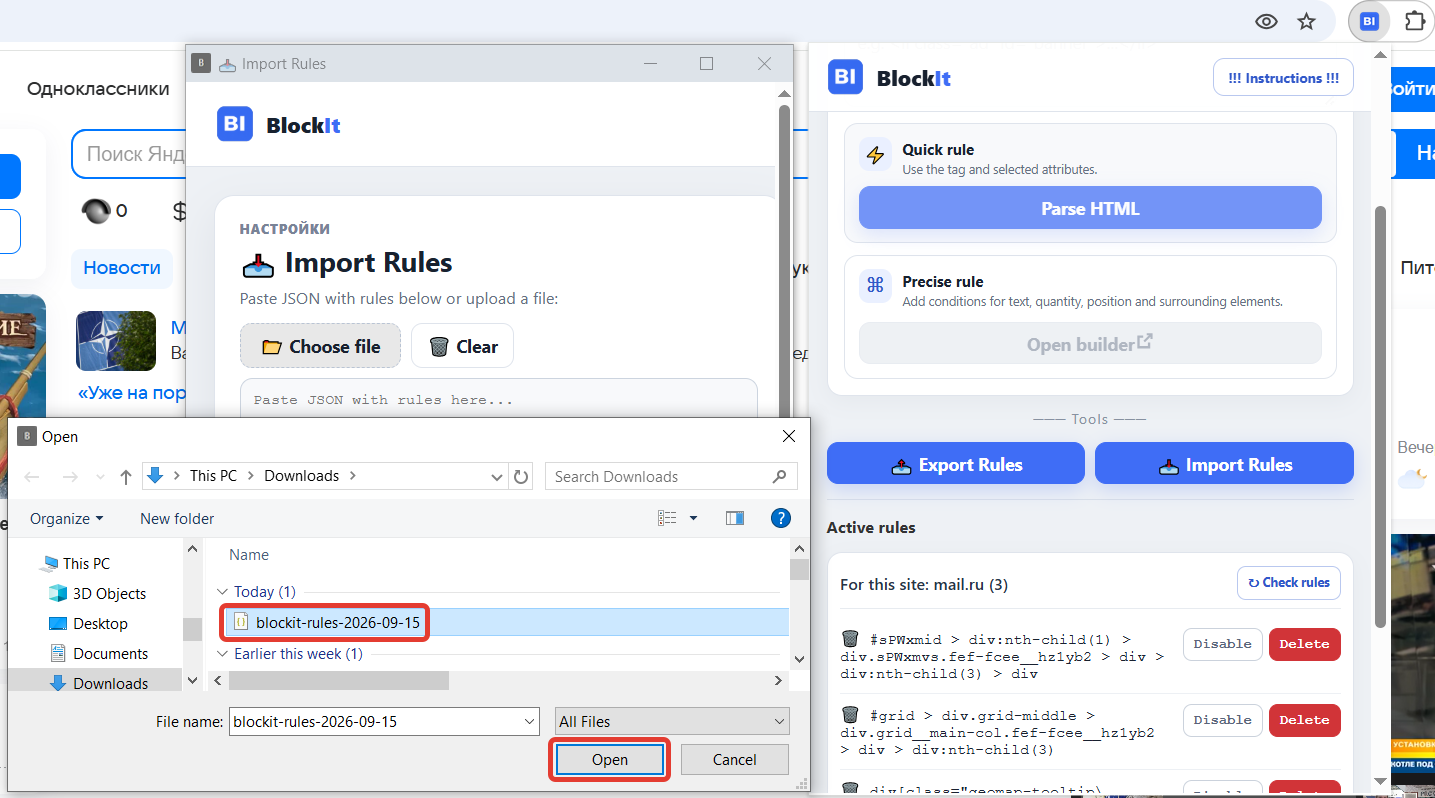
Open the page where you want to check the rules, then open BlockIt. In the “For this site: <domain>” group heading, click “Check rules.”
The check shows whether saved rules find elements on the open page. You can take one measurement or enable “Check stability” and choose several reloads. During measurement, BlockIt temporarily stops applying rules, reloads the page, and shows each rule’s match count on every load.
The check includes rules for the current base domain and rules not tied to a domain. BlockIt does not separate subdomains when saving a normal domain binding: for example, a rule created on e.mail.ru is stored for mail.ru. However, elements are checked on the exact page from which you opened diagnostics. A working rule for one subdomain or site section may therefore receive “Did not work” on another subdomain or URL. For a reliable result, open the page for which the rule was created and start the check there.
This happens when the selector is too broad and finds not only the advertisement but other page elements as well.
What to do:
First check the count and identify which elements are in the results. If the required element has a stable class or attribute, add it to the selector. If a simple selector is not enough, open the rule builder: it can account for text, class and attribute counts, sibling position, or relationships with surrounding elements. After refining the rule, check it again on the current page and after a refresh.
Use StableHTMLFinder: it compares several loads and builds a stability map. Find the required element with map search, then inspect its stable traits and surrounding elements.
If the markup looks especially heavily obfuscated, the site may serve a different page variant to VPN connections. If appropriate, temporarily disable the VPN, reload the page, and repeat the analysis. This does not help on every site, but it lets you check whether the more complex markup is tied to the page variant your connection receives.
Try combining stable traits found by StableHTMLFinder with the BlockIt builder. This lets you create a rule manually that takes both the element and its surroundings into account.
Or try the uBlock Origin Lite extension.
If the problem occurs specifically while using BlockIt—for example, its rule does not work or the extension reports an error—send a report through the feedback form. Include the page URL, the rule, and screenshots if possible.